

- If the policy is enforced, the report is proof of value: what it actually blocked over the last 30 days.
- If the policy is report-only or disabled, the report is a pitch: what it would have blocked, plus a built-in request for the client to approve turning it on.
How to reach it
- Open a tenant’s Policies page.
- Click into the policy you want to report on.
- Click Generate policy report.
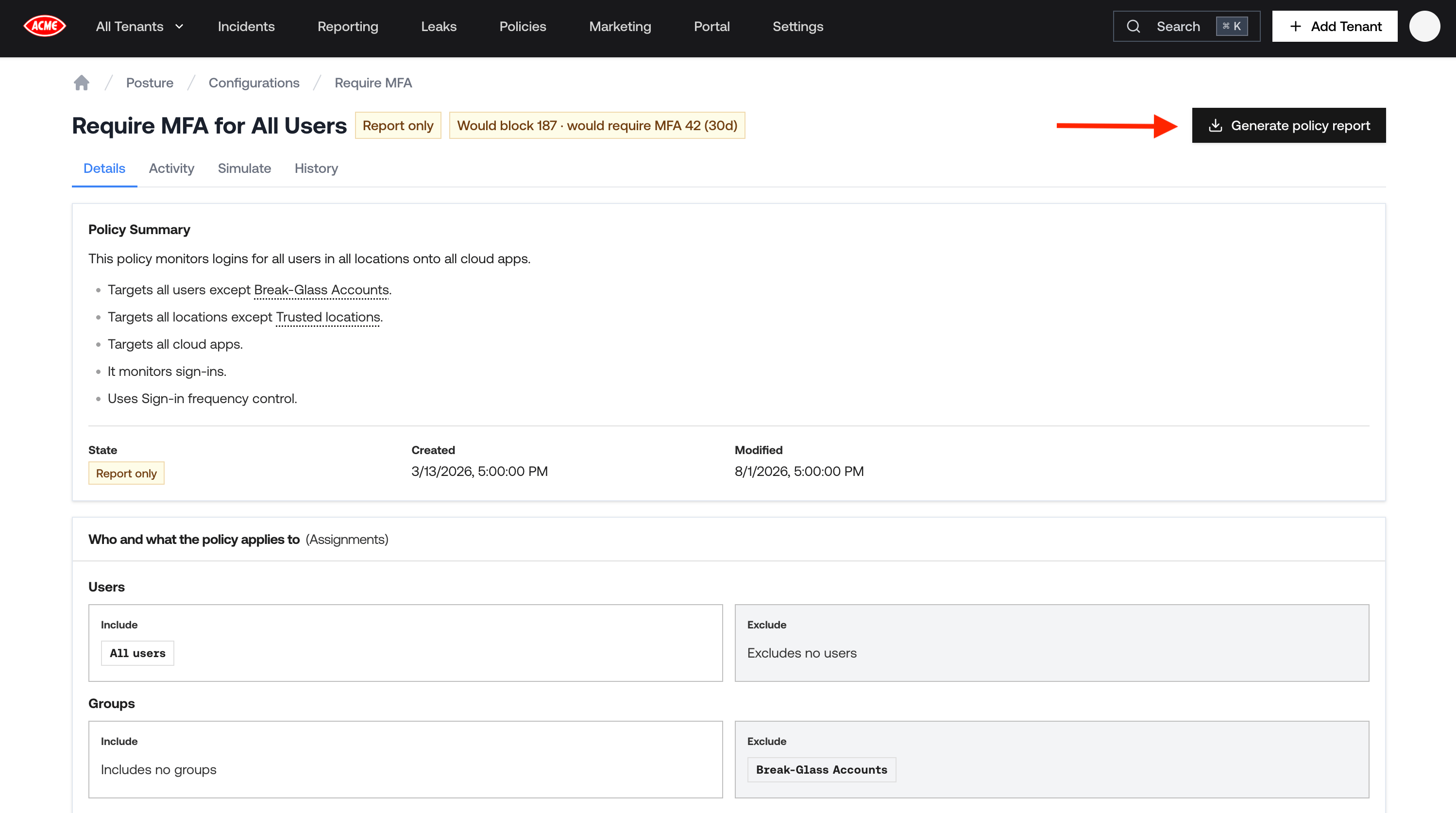
Policies page: Generate policy report
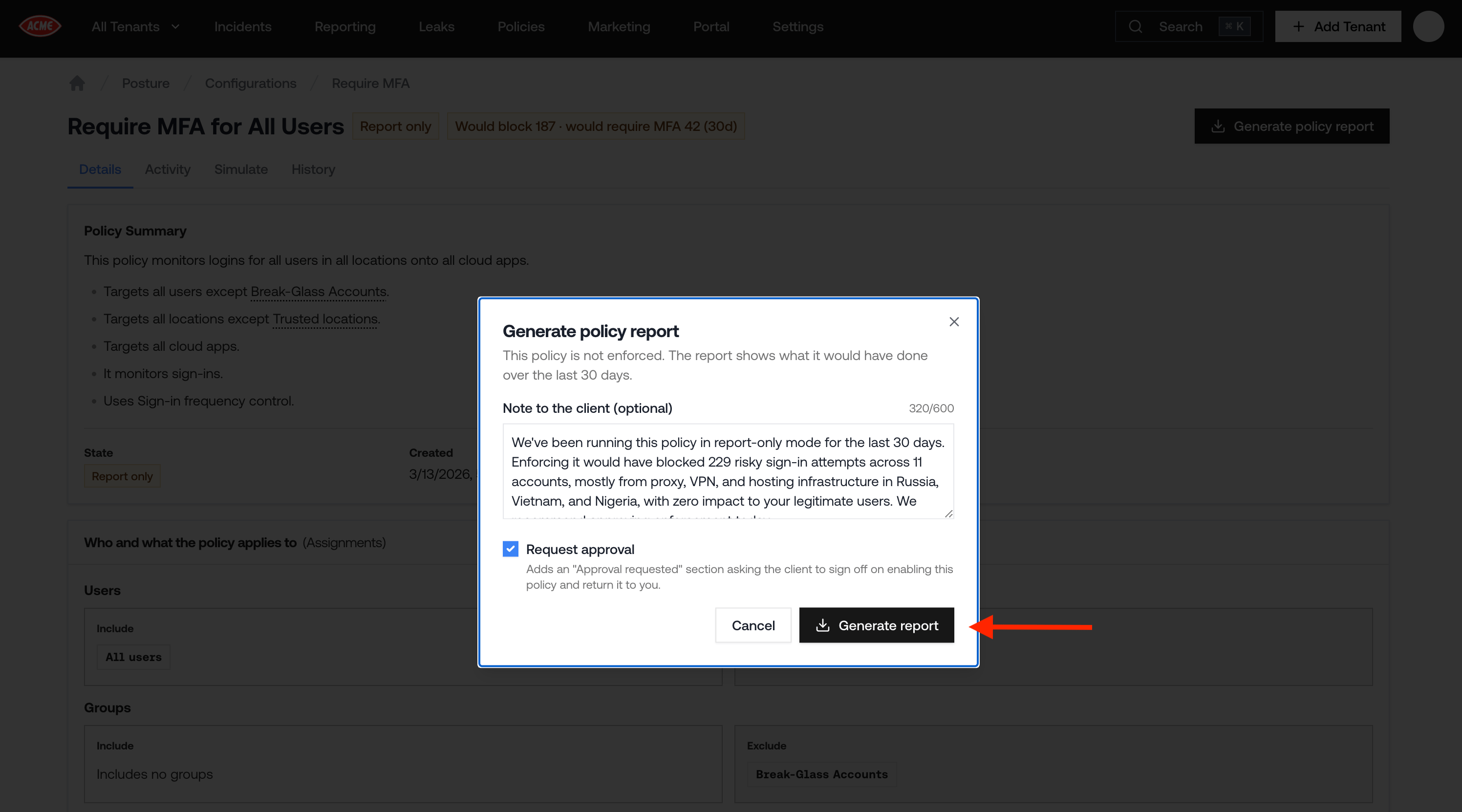
The Generate policy report dialog
The reporting window is fixed at the last 30 days and cannot be changed. The report is scoped to a
single policy, there is no batch option to generate one for every policy at once.
The optional note
The Note to the client field is free text, up to 600 characters, that you write at the moment you generate the report. It is not saved anywhere else and does not carry over to future reports for the same policy. Whatever you write appears verbatim, in italics, in a card near the top of the PDF titled A note from <your organization>. Use it for context the numbers don’t show on their own, like when you turned the policy on or why you’re recommending it now.Requesting approval
For a policy that is report-only or disabled, the dialog shows a Request approval checkbox, checked by default. Leave it checked and the report’s top card becomes Approval requested instead of a plain note. It includes:- A short explanation of what you’re asking for and why, worded for whether the policy is currently report-only (Microsoft is evaluating sign-ins but not blocking anyone) or disabled (nothing is being evaluated at all, so any figures in the report come from an earlier period).
- Your note, if you wrote one.
- A sign-off block: a checkbox next to a line stating that the client has reviewed the report and authorizes you to enable the policy, with blank lines for a name, signature, and date, and instructions to return the signed page to you.
An already-enforced policy has nothing to ask permission for, so the approval option only appears for
report-only and disabled policies.
What’s in the PDF
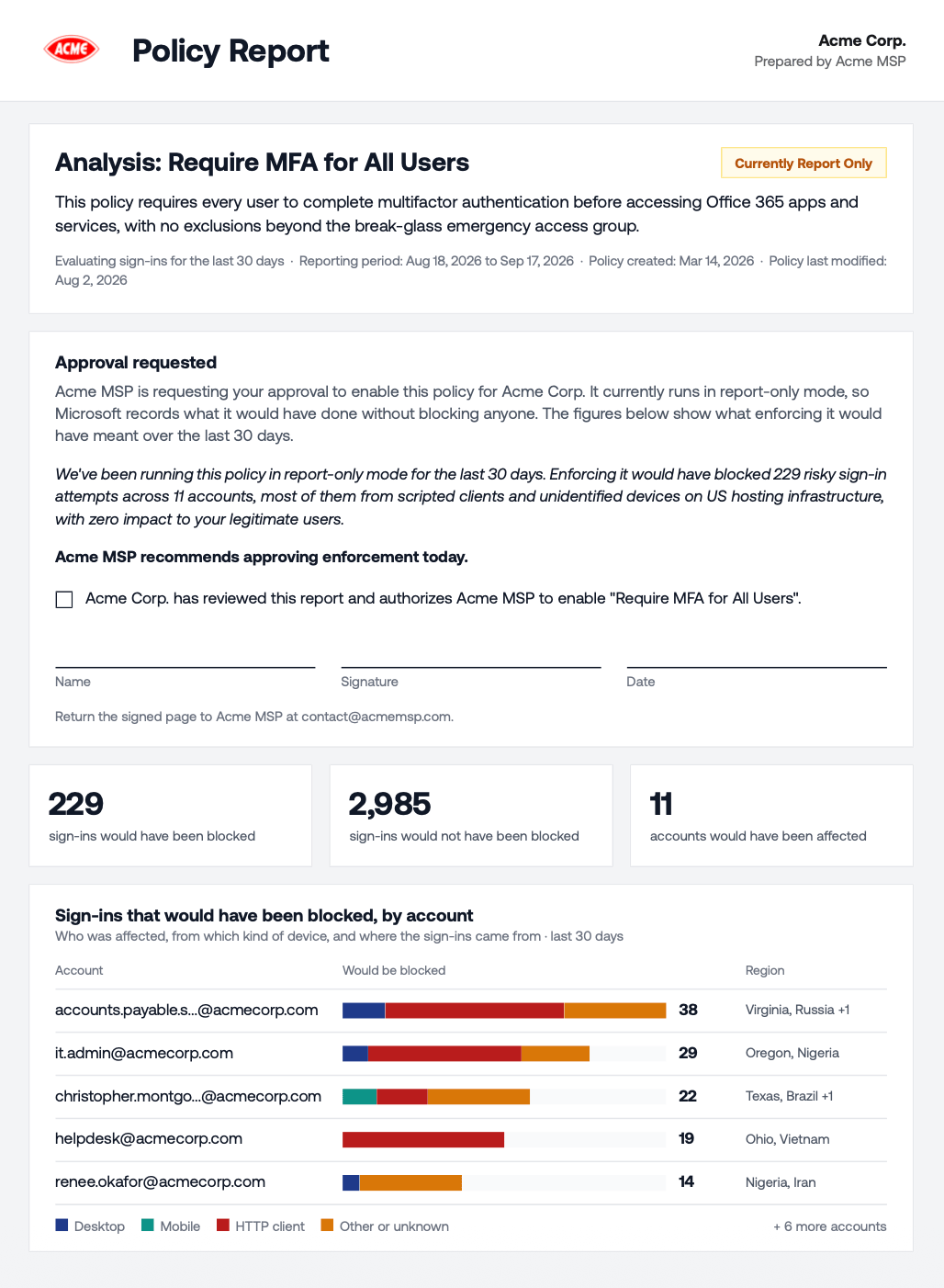
A generated Conditional Access Policy Report
- Title card: the policy name, a status pill (Enforced, Report Only, Disabled, or State unavailable), a short plain-English description of what the policy does, the reporting period, and when the policy was created and last modified.
- Note or approval request, if you added one.
- Activity: four stat tiles covering sign-ins blocked (or would-have-been-blocked), attacks stopped, accounts affected, and blocks from proxy, VPN, or datacenter IPs, followed by a breakdown of affected countries and a table of the most affected accounts.
- Who and what this policy covers: side-by-side cards for what’s in scope and what’s excluded, a table of any excluded accounts that still had sign-ins during the window (so a client can see who a fix would need to account for), and a plain-English summary of the grant requirement, conditions, and session settings.
- Appendix: the policy’s full raw configuration, for anyone who wants the technical detail behind the summary.
Related
- Conditional Access Policies covers Petra’s policy recommendations, simulator, and version history.
- Posture Report covers a tenant’s full Microsoft 365 configuration, not just one policy.