

The full workflow
- Run a baseline. Petra reads the tenant’s live configuration and freezes it as a scored snapshot. Update permissions first if Petra prompts you, so nothing comes back “Not assessed.”
- Review and tune the report. Open the editor to check every finding, adjust wording, choose the top risks, and hide anything that is not relevant to this client. Download the PDF.
- Fix the gaps. Open Fix posture for the tenant. It reads every control live from Microsoft and lets you apply the fix from Petra: toggle an Exchange setting, deploy a Conditional Access policy, or review the affected accounts and fix a chosen subset.
- Run a follow-up report. Generate a new report for the same tenant, and this time pick the baseline in the Baseline to compare against field. Every control now shows its prior state next to its current one, marked Improved or Drifted, and the score reads as
before → after. - Repeat. Each follow-up can compare against any earlier report, so you can run one per quarter and always show movement.
How to reach it
- Open the Reporting tab.
- Click Run a Report.
- Click Posture.
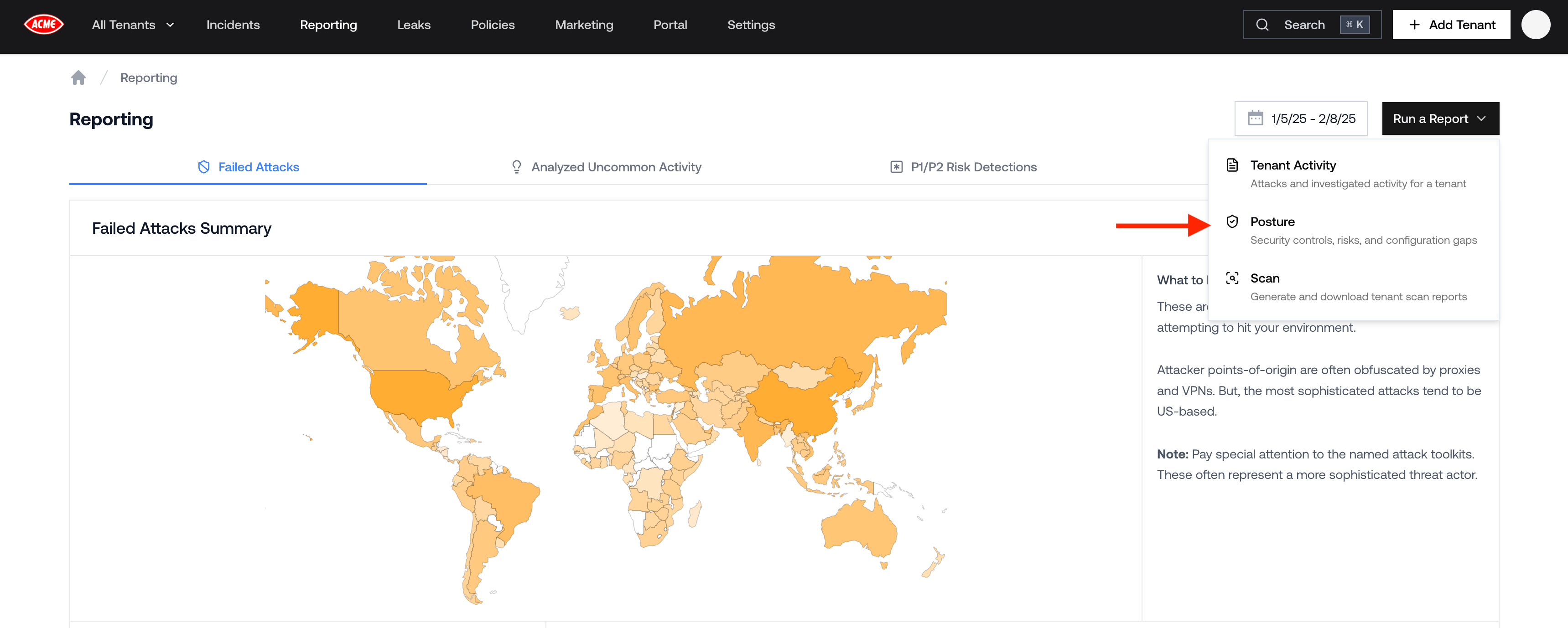
Reporting tab: Run a Report > Posture
- Search by tenant name (on the all-tenants view) and filter by All reports, Baselines, or Follow-ups.
- See each report’s score, its status (Ready, Generating, or Failed), and which baseline a follow-up was compared against.
- Click a Ready row to open it in the editor, click Fix to jump to the tenant’s Fix posture page, or click Retry on a failed run.
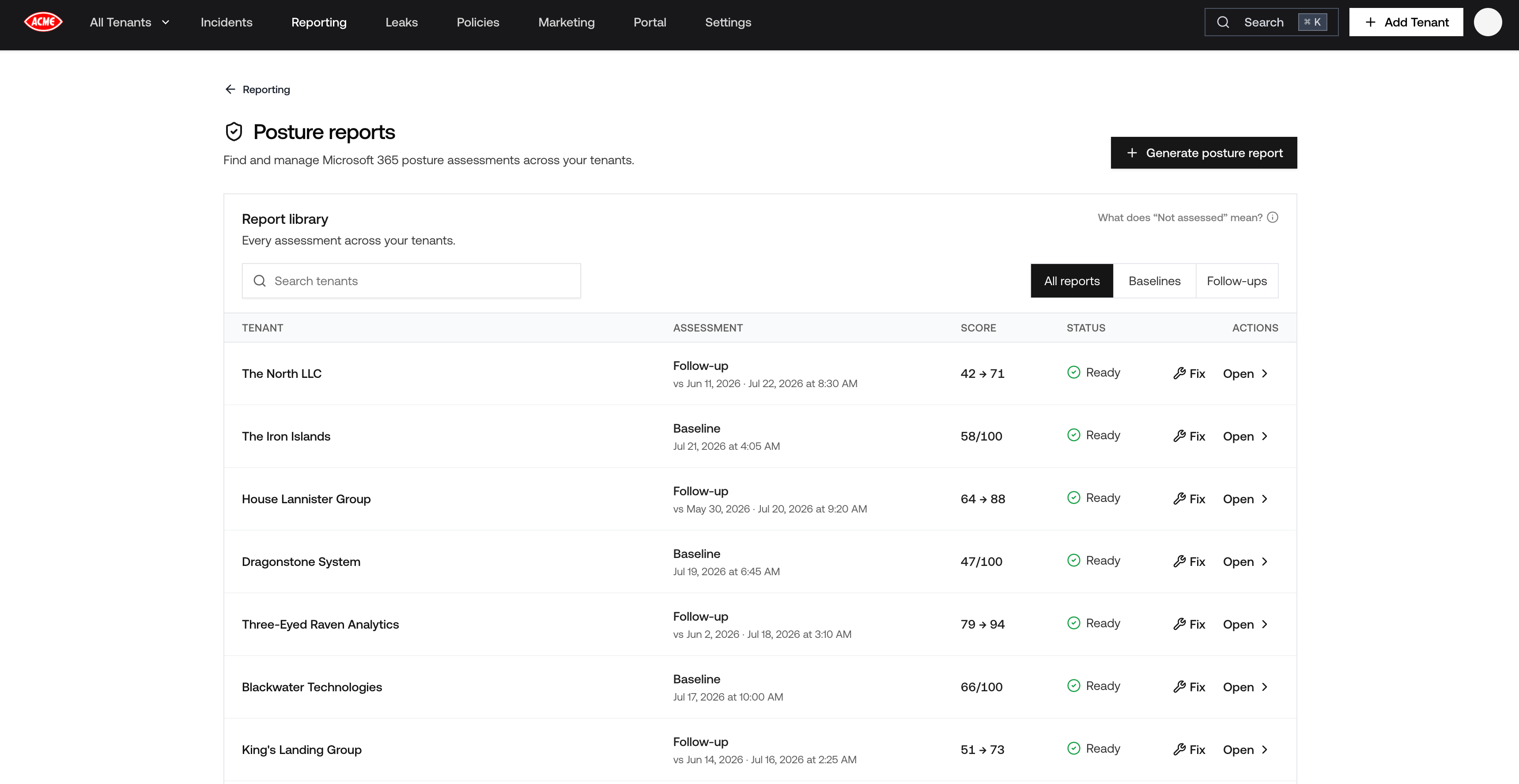
The posture report library
Posture reports are available to every member of your organization except guest accounts and
billing-only members. Applying a fix from the Fix posture page requires an admin or full member
account.
Run a baseline
- On the Posture reports page, click Generate posture report.
- Choose the Tenant. If you arrived from a tenant’s Reporting tab, or your organization has a single tenant, the tenant is already fixed and cannot be changed here.
- Check for a permissions warning. If Petra needs updated Microsoft permissions to read every setting, an amber panel appears with the fix. See Updating permissions below.
- Leave Baseline to compare against on New baseline (no comparison). This freezes today’s configuration as the starting point.
- Click Generate posture report.
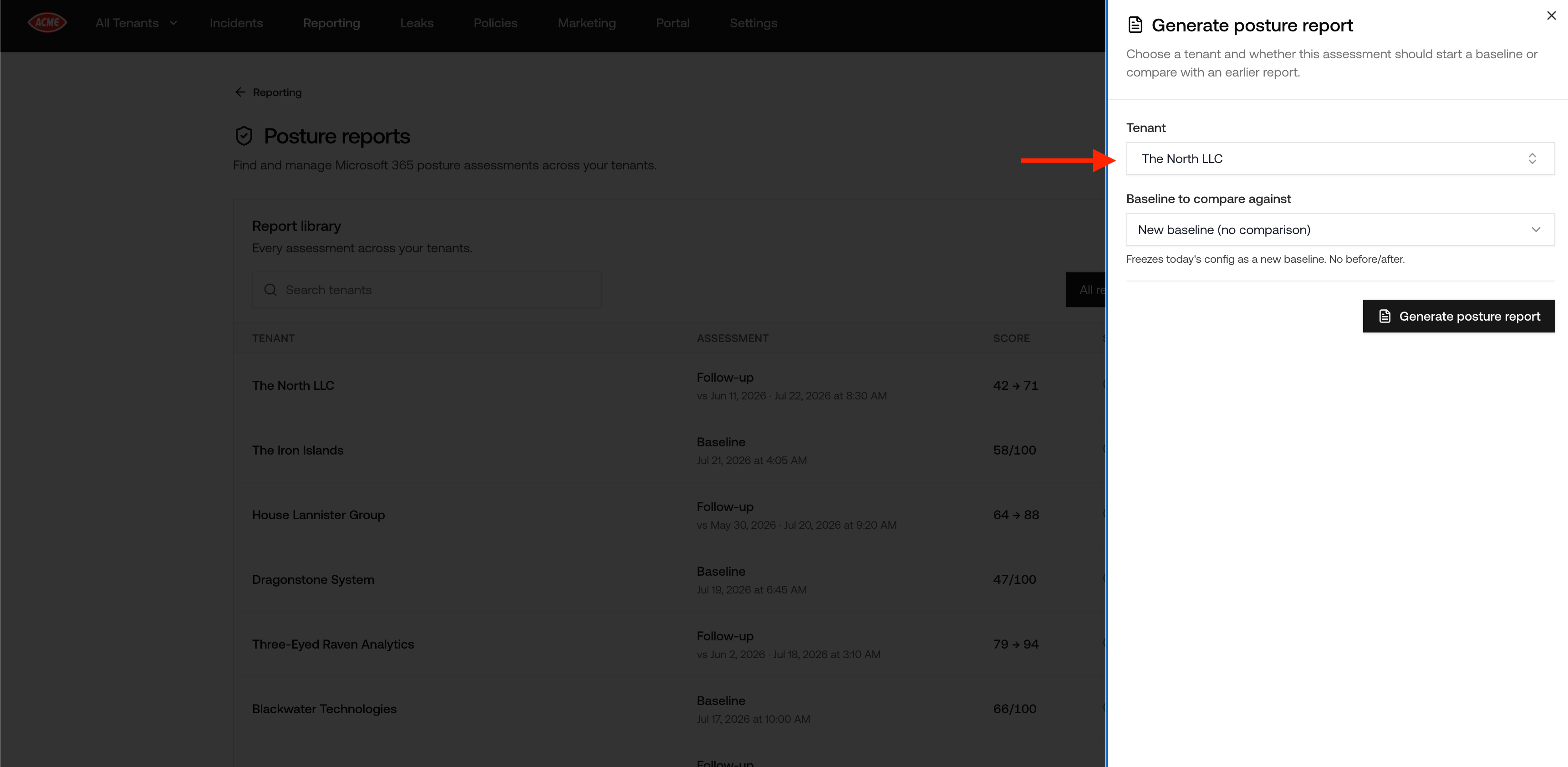
Generating a baseline posture report
If the tenant already has a baseline, Petra warns you and links to it before creating a second
one. A second baseline is a fresh starting point with no before and after, so if your goal is to
show progress, run a follow-up against the existing baseline instead.
Updating permissions
Tenants connected through Microsoft Partner Center- On the Posture reports page, look for the banner counting tenants missing permissions, and click Update permissions for all N tenants. To fix a single tenant instead, open the Generate posture report panel, select the tenant, and click Grant permissions.
- Petra grants the permissions over your existing GDAP relationship. No client action and no admin consent link is needed.
- Generate a new report for any affected tenant to reassess the controls that were Not assessed.
- In the Generate posture report panel, select the tenant and click Open Microsoft link, or click Copy Microsoft link to send it to the client.
- A Microsoft 365 Global Administrator or Privileged Role Administrator for that tenant signs in and approves. Petra cannot grant these permissions on their behalf, because there is no GDAP relationship to use.
- Return to Petra. The warning clears once the approval lands, and you can generate the report.
Read-only members see the warning but cannot act on it. Ask a Petra administrator or a member who
manages tenants to update the permissions.
What a Posture Report looks like
The PDF is landscape, white-labeled with your logo, organization name, and contact email, and contains no Petra branding. Update your branding in Settings > Branding. See Customizing Report Branding.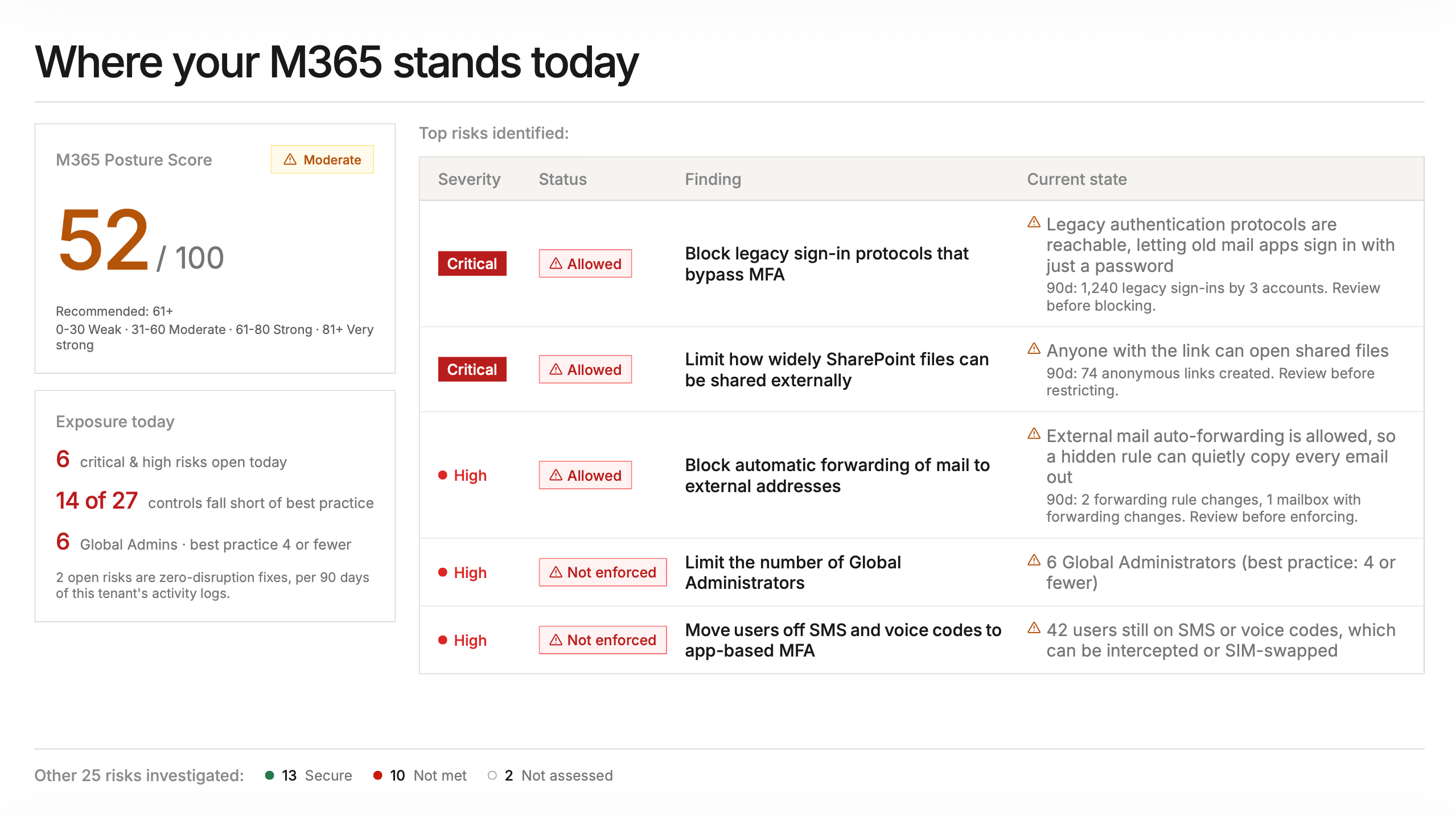
Where your M365 stands today: the summary page of a Posture Report
- Cover: your logo, the tenant name, the assessment date, and your organization name and contact email as the preparer.
- Why identity posture matters: fixed explainer content on why Microsoft 365 identity configuration is where attacks start.
- Where your M365 stands today: the posture score out of 100 with its band (Weak 0-30, Moderate 31-60, Strong 61-80, Very strong 81+) against the recommended 61+, an exposure summary (critical and high risks open, controls short of best practice, Global Admin count), up to five top risks with their current state, and a rollup of every other control as Secure, Not met, or Not assessed.
- Accounts & identities: MFA enforcement, weak MFA methods, dormant accounts, shared mailbox sign-in, stale privileged groups, Authenticator number matching.
- Global Administrators: the admin roster with each admin’s MFA enforcement, MFA strength, password age, and failed attacks over the last 6 months, plus a check on how many Global Administrators the tenant has. Overflows onto extra pages for large rosters.
- Login: Conditional Access Policies: MFA for all users and all admins, blocking legacy authentication, phishing-resistant MFA for admins, device compliance, the device-code flow, admin session limits, and accounts excluded from policies.
- Apps & directory governance: user consent to third-party apps, the admin consent workflow, and who can register apps, create tenants, or create groups.
- External sharing & guests: SharePoint external sharing, guest resharing, SharePoint legacy authentication, and guest directory access and invitations.
- Exchange configuration: the unified audit log, mailbox auditing, automatic external forwarding, external sender tagging, SMTP AUTH, and mailboxes exempted from auditing.
- Recommended next steps: the same top risks as a current-state to should-be table, with the score the tenant would reach by fixing them. Baseline reports only. Follow-ups end on the Exchange page, because the improvement story is already on every section page.
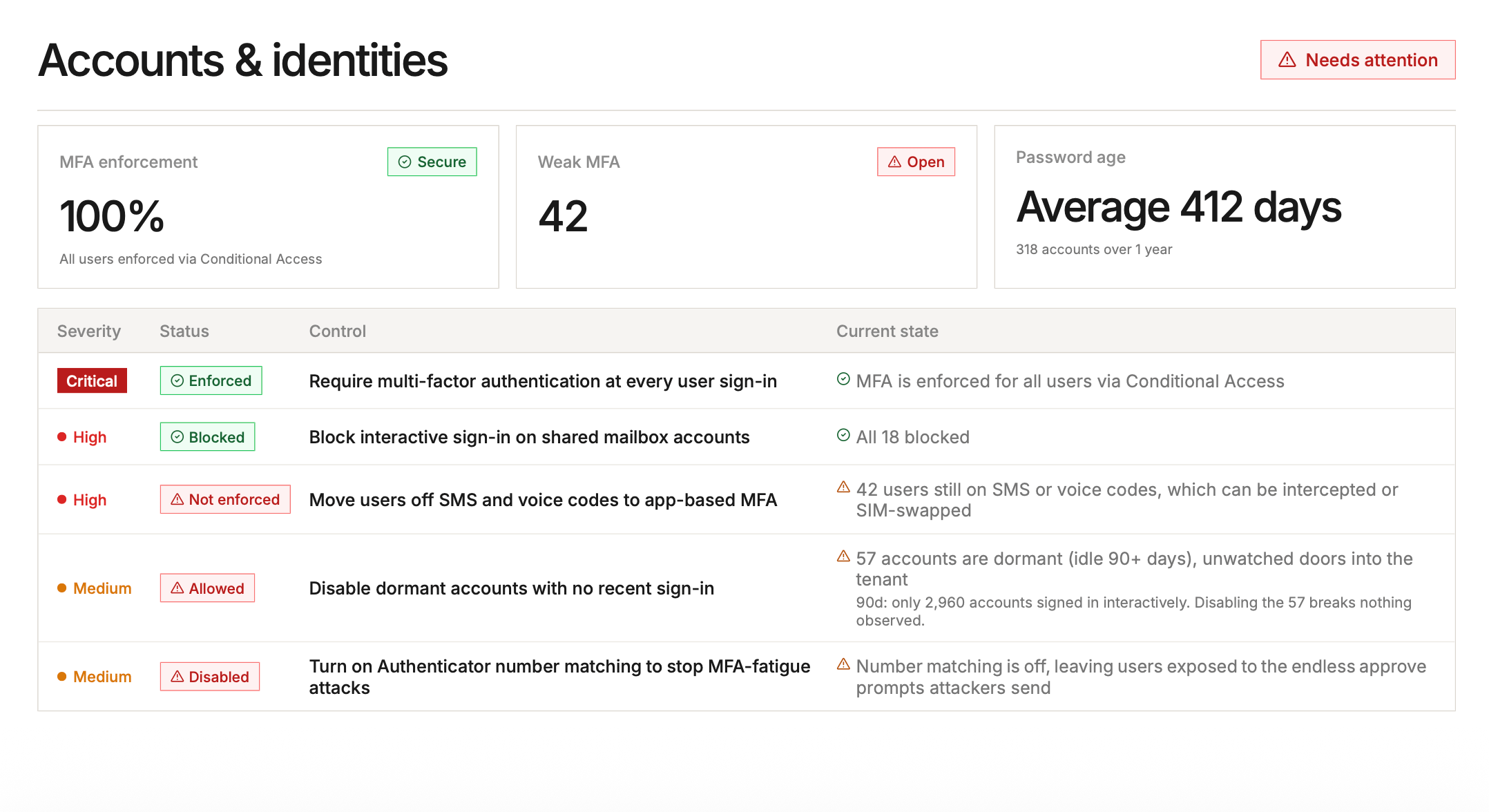
A section page: Accounts & identities
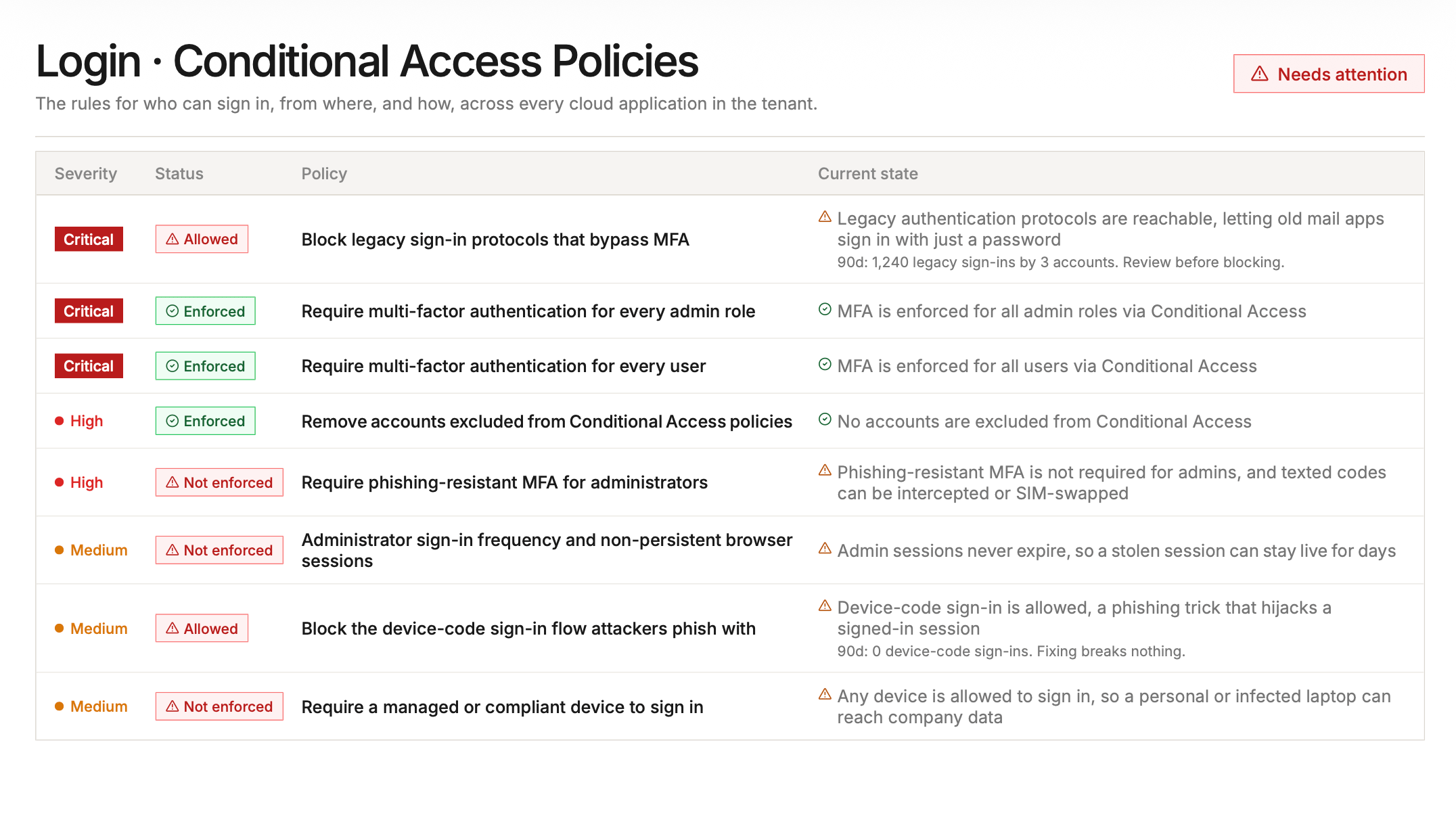
A section page: Login and Conditional Access Policies
How the score works
The score is the severity-weighted percentage of assessed controls that meet best practice. Critical controls count for four times as much as low-risk ones. The PDF reports it as a band: Weak at 0 to 30, Moderate at 31 to 60, Strong at 61 to 80, and Very strong at 81 and above, with 61+ marked as the recommended floor. Inside Petra, the Fix posture page shows the same score with a letter grade instead, running A at 93 and above, A- at 87, B+ at 84, B at 80, B- at 75, C at 65, D at 40, and F below that. Controls marked Not assessed are excluded from both sides of the calculation, so a missing permission never inflates or deflates the score. It just narrows what the score is based on.The Posture Report editor
The editor is where you review a generated report before sending it. It opens automatically when a scan completes, and you can reopen it any time by clicking a Ready row on the Posture reports page.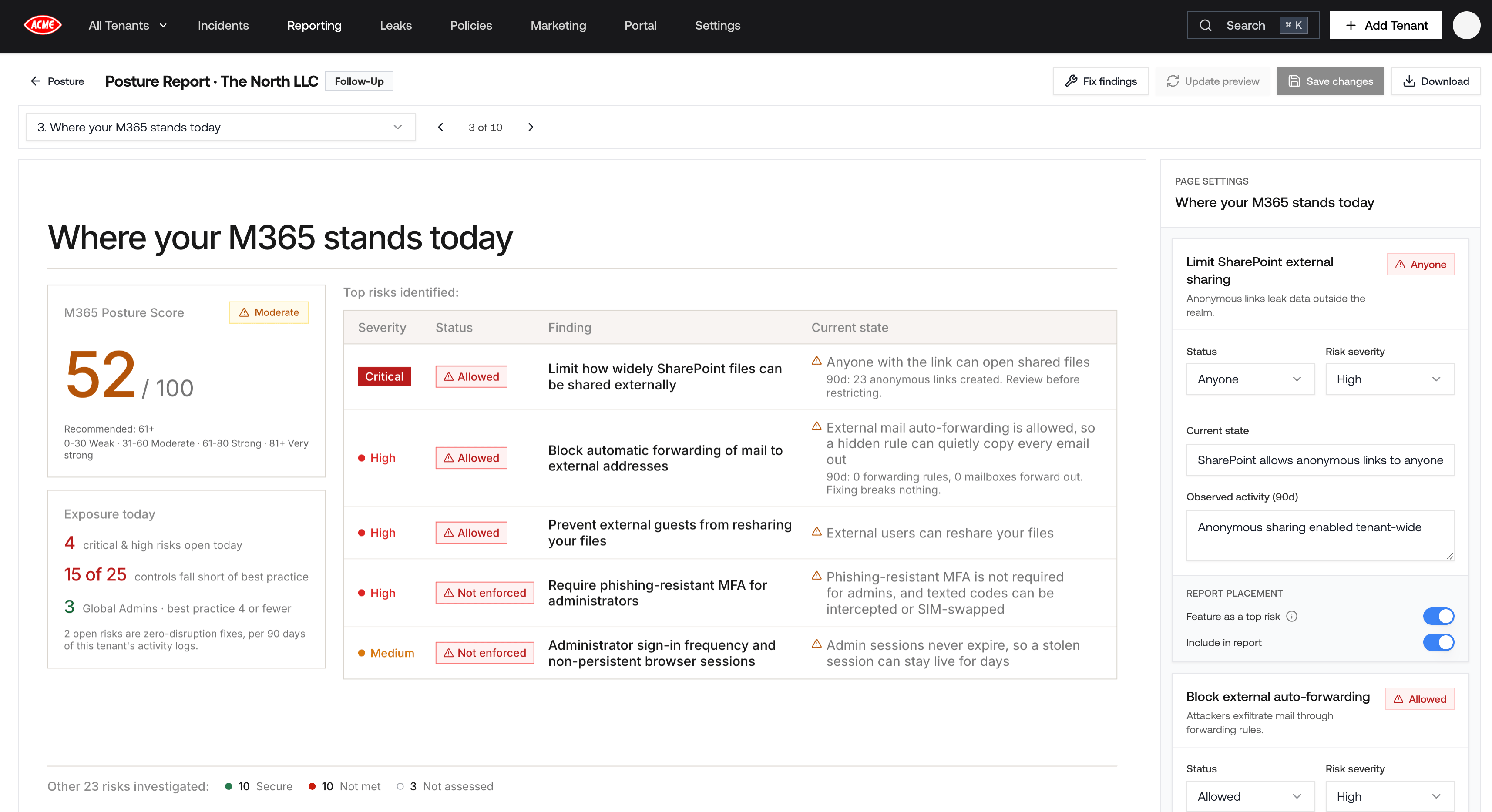
The Posture Report editor
- Status: the state the report shows for the control.
- Risk severity: critical, high, medium, or low. This also affects the score.
- Current state: the sentence describing what the tenant looks like today.
- Observed activity: the usage line under a finding, where one applies.
- Feature as a top risk: puts the finding on the summary page. Up to five findings can appear there.
- Include in report: hides a finding from the client-facing PDF without deleting it. Hidden findings stay in the editor so you can bring them back.
- Click Update preview to re-render the PDF with your edits.
- Click Save changes to store them. Saved edits stick to the report, and a later follow-up compares against your edited version rather than the raw scan.
- Click Download for the PDF. The file is named
{tenant} - M365 Posture Report.pdf. Download stays disabled until the preview matches your edits, so click Update preview first. - Click Fix findings to jump straight to the Fix posture page for this tenant.
The Fix posture page
Fix posture is where you close the gaps. Reach it from the Fix button on any Ready row in the report library, or from Fix findings in the editor.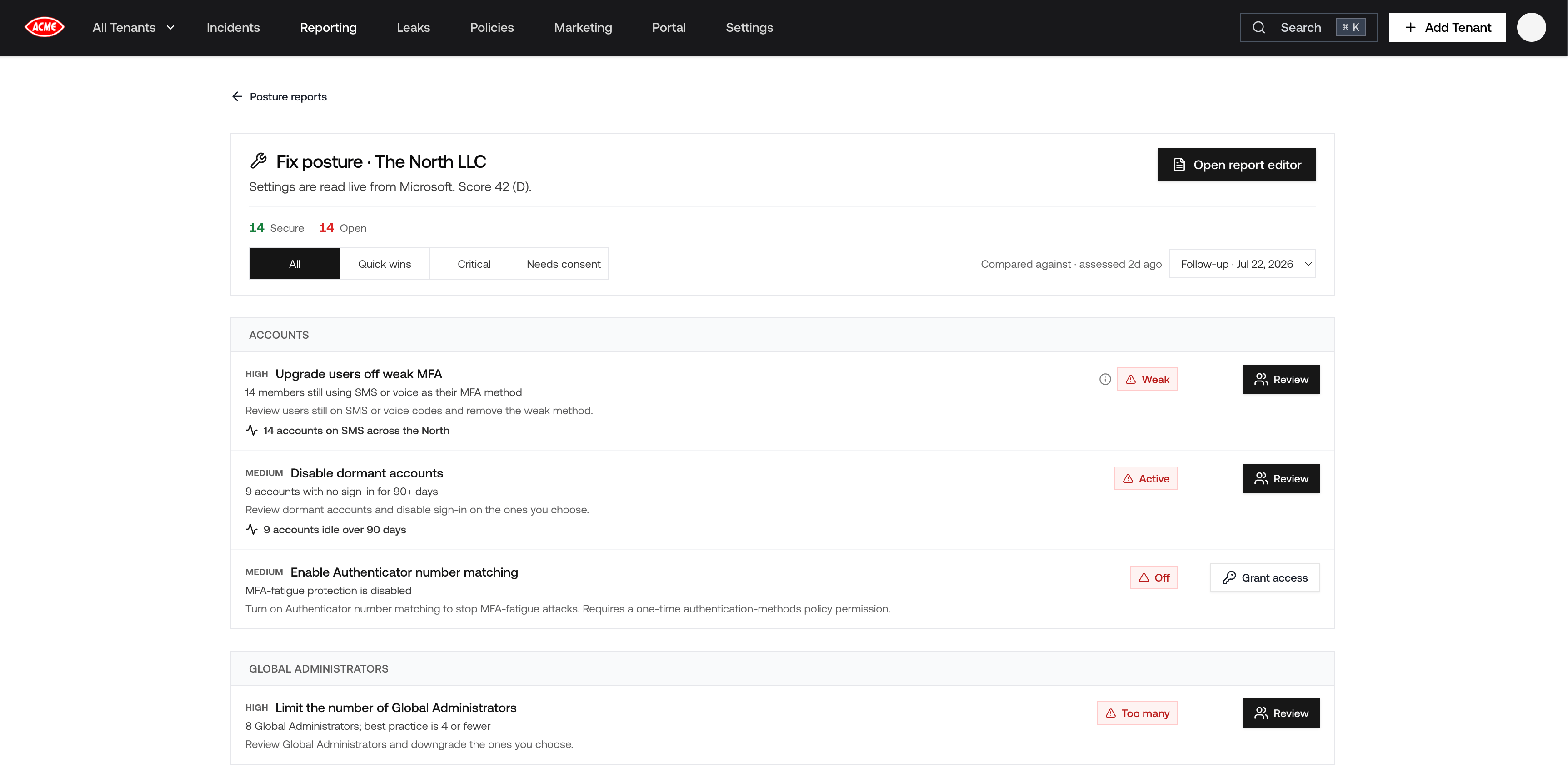
Fix posture for a tenant
- All: every control.
- Quick wins: reversible one-click toggles that still need fixing. Start here.
- Critical: only critical-severity controls.
- Needs consent: controls whose fix needs a Microsoft permission Petra does not hold for this tenant yet.
A control does not always flip to secure the moment a fix succeeds. A Conditional Access policy
deployed report-only stays open until you enforce it in Entra, and Microsoft’s MFA registration
report can lag several hours behind a change. Rows in that situation show an explanation next to
their status.
Only one fix runs at a time. If a control’s live status cannot be read, the row falls back to the
status from the comparison report and says so, rather than reporting the control as secure or
unassessed.
Run the follow-up report
Once you have fixed what you are going to fix, run the follow-up. This is the report that shows the before and after.- Go back to Posture reports for the tenant. The Fix posture page has a Posture reports link at the top.
- Click Generate posture report and confirm the tenant.
- In Baseline to compare against, choose the baseline you started from. Petra lists each one with its date and score, and marks the most recent and oldest.
- Click Generate posture report.
- Every control shows its prior state alongside its current one. Controls you fixed read Improved, controls that regressed read Drifted, and controls that were already fine keep their secure label.
- The report library shows the score as
before → afterfor the row, so the improvement is visible without opening the PDF. - The report is labeled Follow-Up in the library and in the editor.
- Controls that were not part of the baseline are marked as such instead of being silently compared.
Troubleshooting
A control says “Not assessed.” Petra could not check that control. Usually Petra is missing the Microsoft permissions to read the setting, or the tenant does not have the license the control requires. Update the tenant’s permissions, then generate a new report to reassess. This only affects the posture report, never threat detection. A whole section came back “Not assessed.” That is normally one permission, not many. Conditional Access, authorization, admin consent, and authentication method policy reads all depend on policy read access, and the Exchange rows depend on the connector’s Exchange permissions. Update permissions and rescan. The scan is taking longer than 1 to 3 minutes. The report keeps generating even if you close the panel or leave the page. Come back to the Posture reports page, and the row flips from Generating to Ready when it finishes. The scan failed. Click Retry on the failed row. The retry reopens the generate panel with the same tenant so you can check the permission warning before running again. The Fix page says there is no posture assessment yet. The Fix page needs one completed report for the tenant, because that report supplies the comparison context. Run a baseline first.Related
- Prospecting Report shows a client what attackers have already done in their tenant. Posture shows what would let it happen again.
- Policy Report covers a single Conditional Access policy in depth, including its own approval-request flow.
- Conditional Access Policies covers Petra’s policy recommendations, simulator, and version history in depth.
- Domain Spoofing Report covers the email authentication side of posture: Direct Send, SPF, DMARC, and DKIM.
- Tenant Report is the monthly monitoring report, and the place where report branding is documented.