

Overview
The Policies page gives you a single view of all Conditional Access Policies (CAPs) across your tenants. You can see the status and configuration of each policy, check how many sign-ins it has blocked, and drill into individual sign-ins to understand exactly what triggered a block. This is useful for:- Posture visibility: Confirm that the right policies are enforced across your tenants.
- Troubleshooting blocked sign-ins: Find out which specific policy blocked a user and why.
- Client reporting: Show clients which policies are active and what they’re catching.
Viewing Your Policies
- Click Policies in the left navigation bar.
- The page lists all your tenants. Click a tenant row to expand it and see that tenant’s Conditional Access Policies.
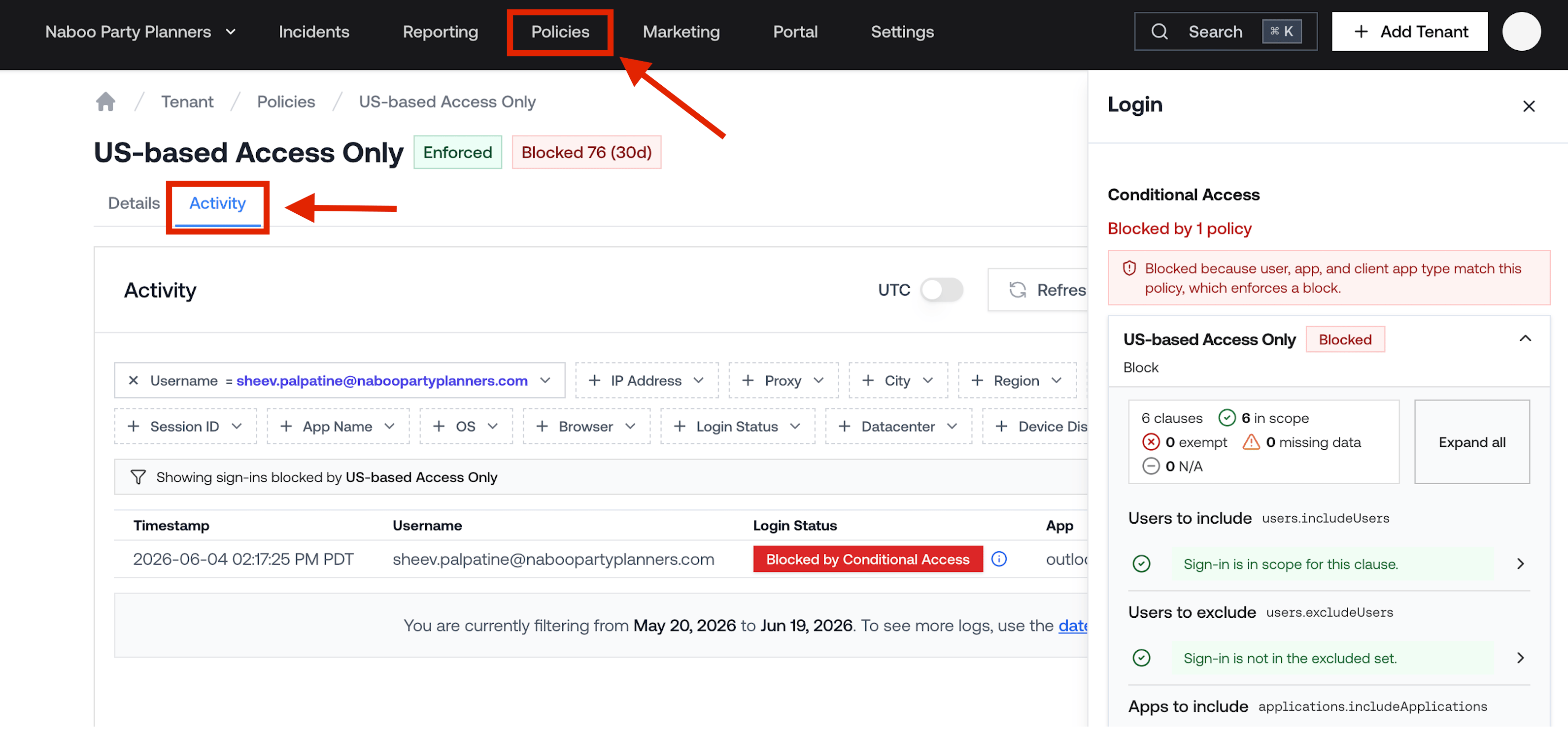
View Conditional Access Policies across all tenants
Viewing Policy Details
Click a policy name to open its detail page. The Details tab shows a plain-English summary of the policy, including:- Who it applies to: which users, groups, or roles are included or excluded.
- What apps it covers: which applications the policy targets.
- What happens: whether sign-ins are blocked, require MFA, or have other grant controls applied.
Seeing Which Policy Blocked a Sign-In
When a sign-in is blocked by a Conditional Access Policy, you can see exactly which policy caused the block and what conditions triggered it.From the Policies page
On the policy detail page, click the Activity tab to see all sign-ins that were blocked by that specific policy. This is a filtered view of the tenant’s login logs showing only sign-ins affected by the selected policy.From the Activity viewer
When browsing a tenant’s login logs, blocked sign-ins show a status indicating they were blocked by Conditional Access. Click the Information icon on a blocked sign-in to open a drawer that shows:- Every Conditional Access Policy that was evaluated for that sign-in.
- The result of each policy (blocked, granted, or not applicable).
- Which specific policy triggered the block.
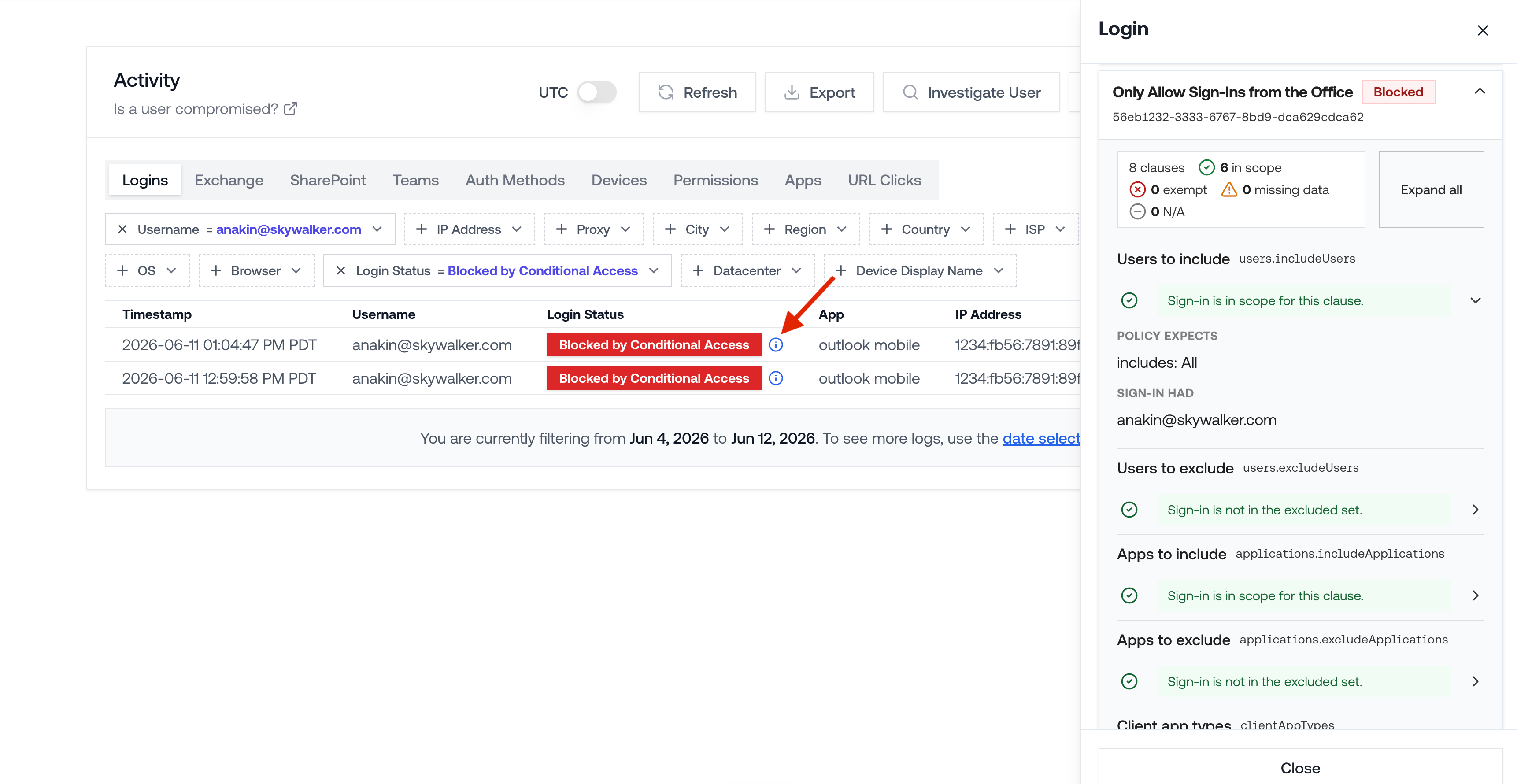
View which Conditional Access Policy blocked a sign-in