

Pause a tenant
Pausing a tenant stops monitoring and removes it from billing, but retains all data. You can resume a paused tenant at any time without re-onboarding.- Go to Settings > Usage.
- Find the tenant you want to pause.
- Click Pause tenant.
- Confirm the pause.
What happens when you pause
- Monitoring stops immediately.
- The tenant is excluded from your billable identities count.
- All existing data (incidents, logs, users) is retained.
- Members and guests lose access to the tenant while it is paused.
Resume a paused tenant
- Go to Settings > Usage.
- Find the paused tenant.
- Click Resume tenant.
Remove a tenant
Removing a tenant stops monitoring and removes access for that tenant in Petra.- Go to Settings > Usage.
- Find the tenant you want to remove.
- Click Remove tenant.
- Confirm the removal.
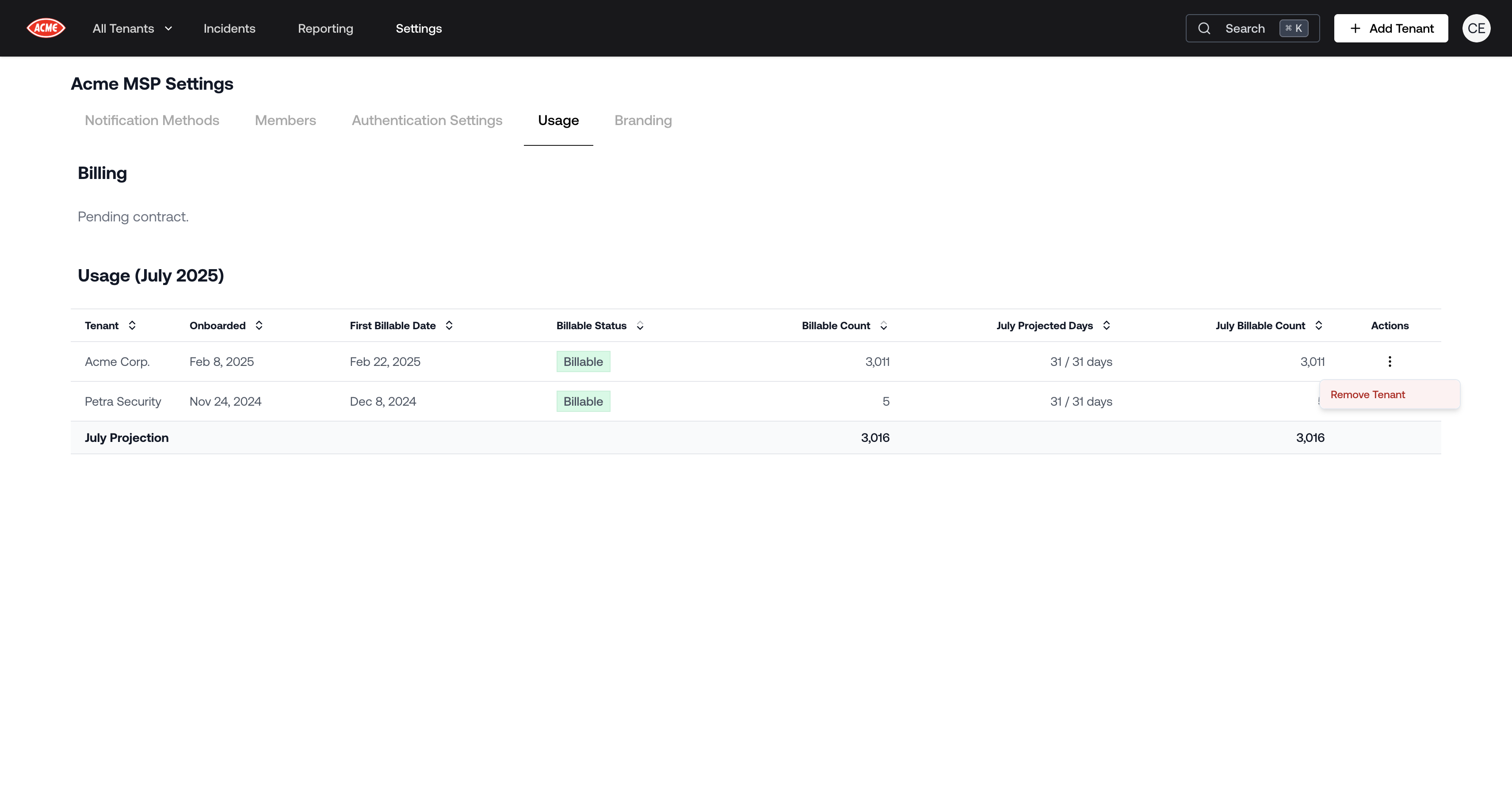
Self-serve Tenant Management
What happens when you remove
- Monitoring for the tenant stops immediately.
- Access to that tenant in Petra is removed for your members and guests.
- You can add the tenant back later by onboarding it again.
Optional: Remove the enterprise application in Azure
After removing the tenant in Petra, you can optionally delete the Petra enterprise application from your Microsoft Entra (Azure AD) tenant. This is not required for Petra, but some organizations prefer to fully clean up access.- Sign in to the Microsoft Entra admin center with at least the Cloud Application Administrator role.
- Go to Entra ID > Enterprise applications > All applications.
- Search for the Petra application (service principal) and select it.
- In Properties, select Delete and confirm.