

Anonymize Incidents
Why This Matters for Sales
Real incidents are your most powerful sales tool. A prospect who sees an actual account compromise — complete with a timeline of the attacker’s activity, what they accessed, and how it was caught — is far more convinced than one who reads a spec sheet. The Anonymize feature makes it safe to use real incidents in any sales context:- Victory lap: Show a prospect a live-monitored incident that Petra caught and stopped fast. The story sells itself: attacker gets in, Petra flags it within minutes, account is locked, threat remediated.
- Cautionary tale: Onboard a prospect’s tenant and let Petra Scan surface what attackers were already doing in their environment. Use Anonymize to walk another prospect through a similar finding without revealing who the victim was.
How to Anonymize an Incident
- Navigate to any incident in the Petra dashboard.
- Click the Anonymize button in the top right of the incident page.
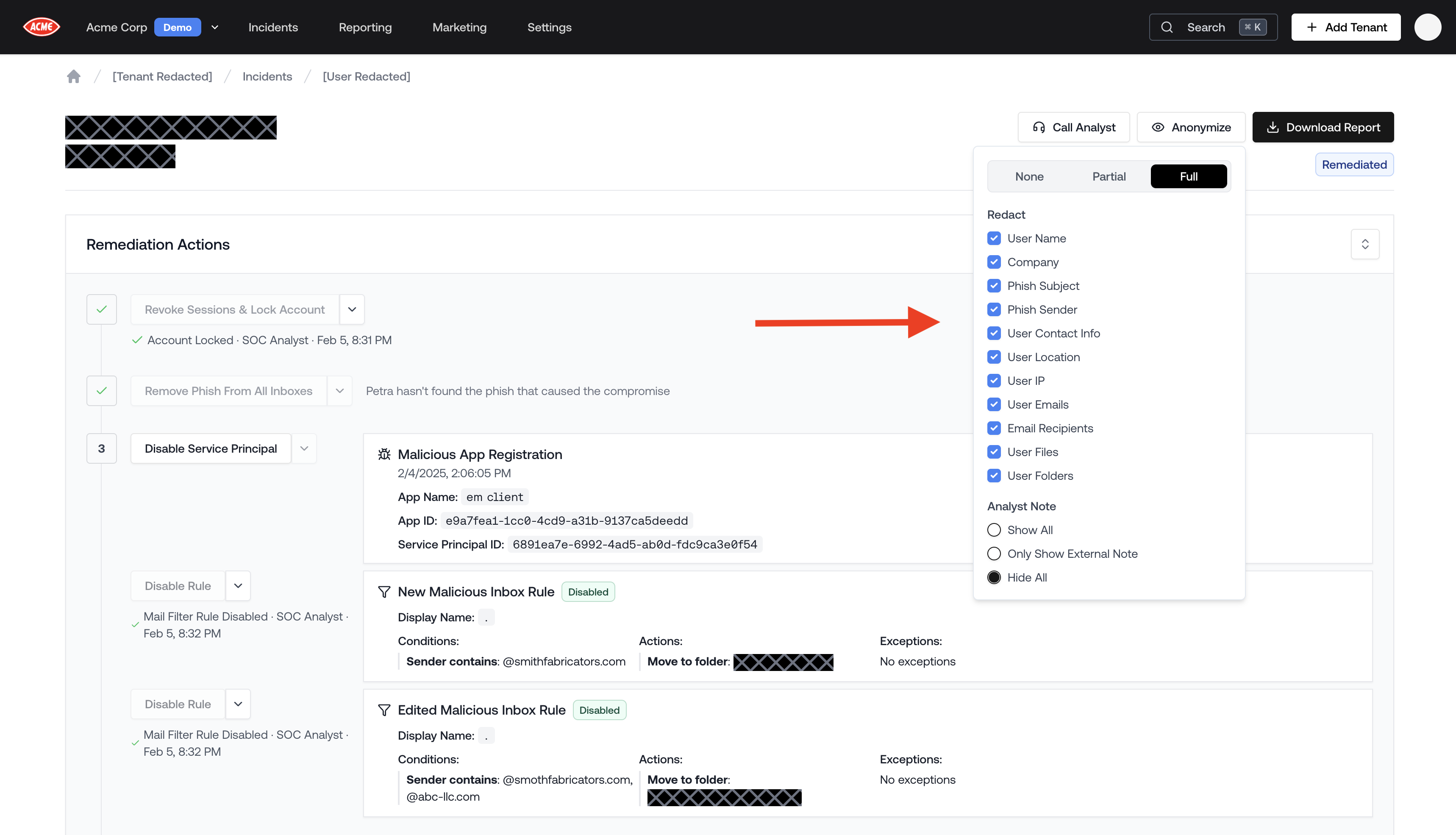
- A menu opens with redaction options. Choose a preset or configure fields manually.
- The incident view updates instantly — the URL encodes your settings, so you can copy the link and share it directly with a prospect. Anyone opening the link sees the same redacted view.
Redaction Presets
For most sales use cases, Partial is the right choice — it protects the victim’s identity while keeping the attack narrative intact.
Individual Redaction Options
If the presets don’t fit your needs, you can toggle any combination of the following fields:
You can also control the Analyst Note separately — show all notes, show only the external-facing note, or hide notes entirely.
Redacted PDF Report
In addition to the in-app anonymized view, you can download a Redacted PDF Report — a fully redacted version of the incident’s Threat Remediation Report, suitable for sending to a prospect after a meeting. For download steps and a full breakdown of what gets redacted, see Redacted Incident Reports.Tips for Using Anonymized Incidents in Sales
- Pick incidents with a strong story arc: The best ones have a clear phish-to-compromise timeline, meaningful blast radius (emails read, files accessed), and a fast Petra response. These are the ones that make a prospect say “what would have happened if no one caught this?”
- Use the Incidents List to find the right one: The Analyst Summary in the incidents list helps you quickly scan for the most compelling and diverse past compromises when picking one to share with a prospect. See the Incidents List Analyst Summary.
- Pair with the Example Scan Report: If you don’t yet have results for this prospect’s tenant, use the anonymized incident view alongside the Example Scan Report from the Marketing Hub to show both what real monitoring catches and what a Scan finding looks like.