

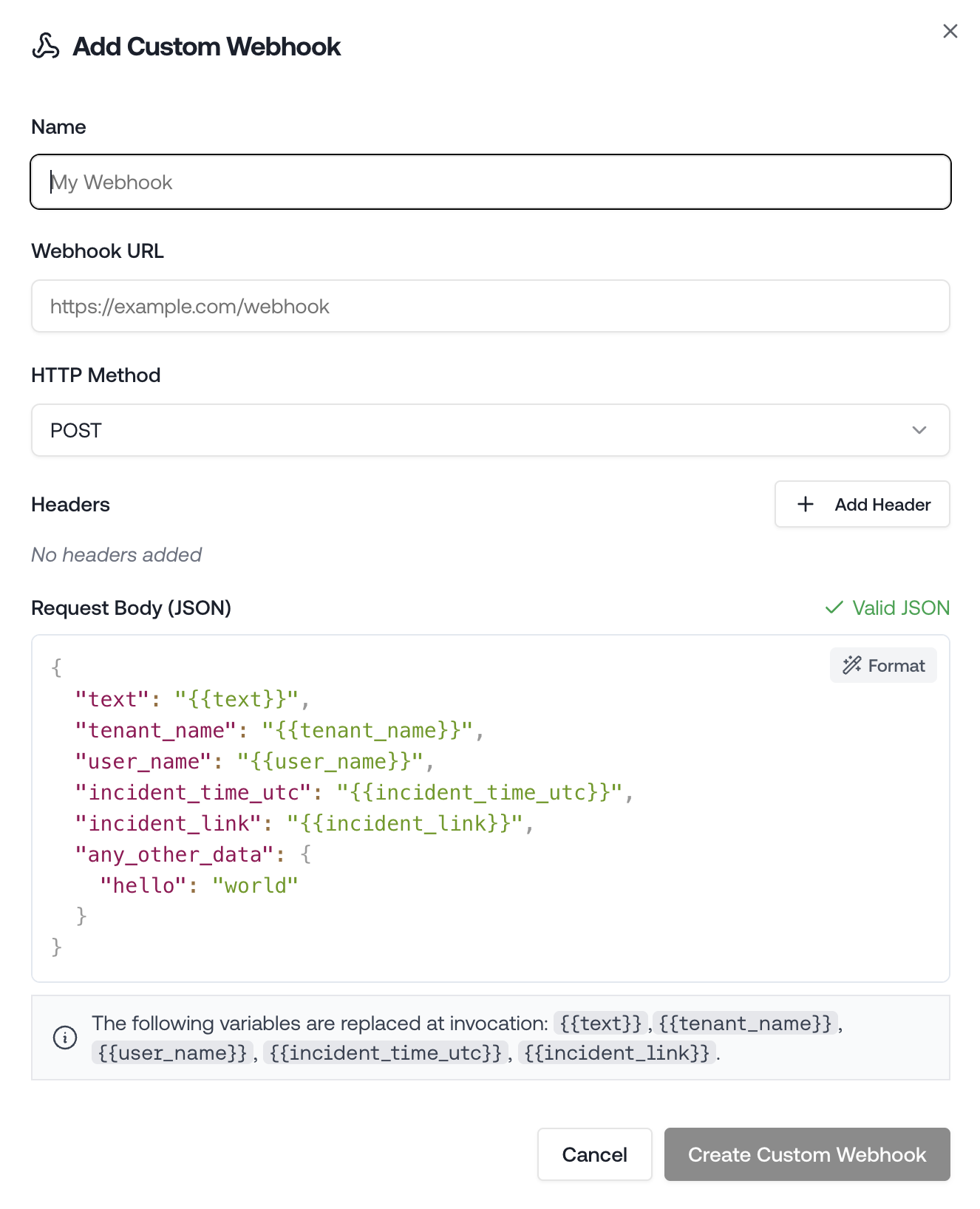
Custom Webhooks
How it works
When Petra detects a compromise, it fires an HTTP request to every webhook you have configured for your organization. You control the URL, HTTP method, headers, and the JSON payload — including which incident variables get interpolated into the body. This happens automatically on the initial incident notification, in parallel with any other notification methods you have set up (email, SMS, Slack, PSA ticketing, etc.).Setting up a webhook
- Navigate to Settings in Petra: https://app.petrasecurity.com/settings
- Scroll to the Custom Webhooks section
- Click Add Webhook
- Fill in the configuration fields (see below) and click Save
Configuration
Name
A label to identify this webhook inside Petra. Not sent in the request.URL
The endpoint Petra will send the request to. Must be a valid HTTPS URL.HTTP Method
Choose the method that your destination expects:Headers
Add any custom HTTP headers your destination requires, such as an authorization token or a content-type override.If you include a body and don’t set a
Content-Type header, Petra automatically adds Content-Type: application/json.- Keys cannot contain spaces
- Keys must be unique (case-insensitive)
Body (JSON)
For non-GET requests, you can provide a JSON payload. Use{{variable}} placeholders and Petra will replace them with real incident data before sending.
Available variables:
Default payload template:
{{variable}} placeholders are replaced.
Testing
To verify your webhook is configured correctly:- Navigate to Settings → Notification Methods
- Click Test Notification Methods at the bottom of the page
Managing webhooks
You can edit or delete any webhook from the Custom Webhooks section in Settings. Deleting a webhook stops it from receiving future notifications immediately.Troubleshooting
No request arriving at my endpoint- Confirm the URL is HTTPS and publicly reachable
- Check that the webhook is saved and appears in the list (not deleted)
- Run a test notification and check your endpoint’s request logs
- Variable names are case-sensitive. Use lowercase with underscores exactly as shown:
{{tenant_name}}, not{{Tenant_Name}} - Make sure the value is inside a quoted string in your JSON body
- The body must be valid JSON. Use the format shortcut (⌘S / Ctrl+S) to auto-format and surface syntax errors
- GET requests do not require or accept a body
- Header keys cannot contain spaces or be duplicated. Use hyphens instead of spaces (e.g.,
X-Api-KeynotX Api Key)