> ## Documentation Index
> Fetch the complete documentation index at: https://docs.petrasecurity.com/docs/llms.txt
> Use this file to discover all available pages before exploring further.
# User Activity Report
> A white-labeled PDF summarizing a specific user's sensitive M365 activity across Exchange, SharePoint, and Teams.
The **User Activity Report** is a white-labeled PDF that summarizes a specific user's sensitive Microsoft 365 activity. It covers actions like accessing financial documents, sending emails to external contacts, and other notable behavior across Exchange, SharePoint, and Teams.
This report is useful for ad hoc investigations into a specific user, for example, summarizing the activity of an employee who recently quit or reviewing what a user did during a suspicious time window.
## Report Contents
The report includes:
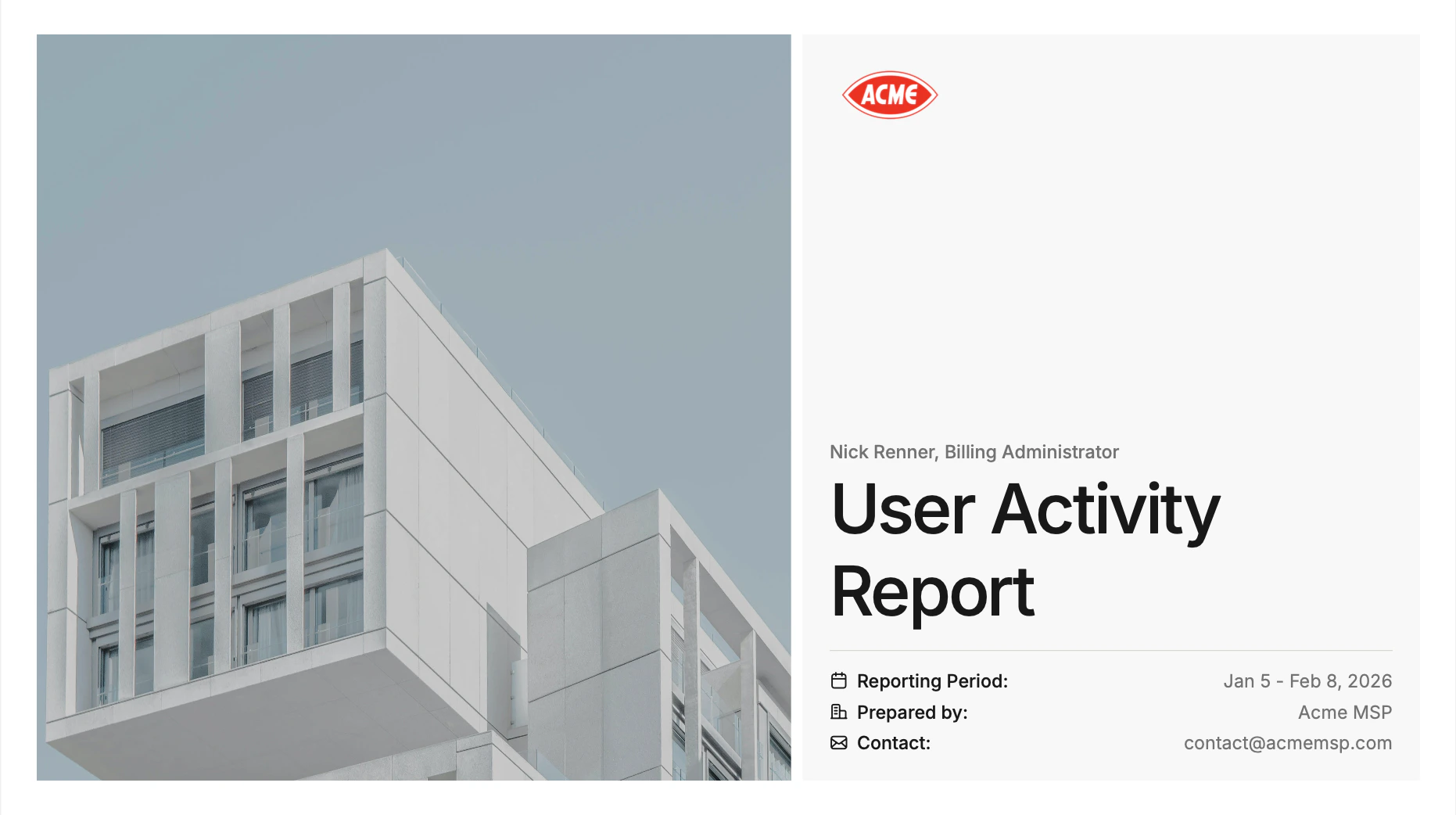
* **Cover page** with your organization's branding, the user's name, tenant, and reporting period
* **Sign-ins**: authentication activity across all M365 services, including geographic origins and application usage
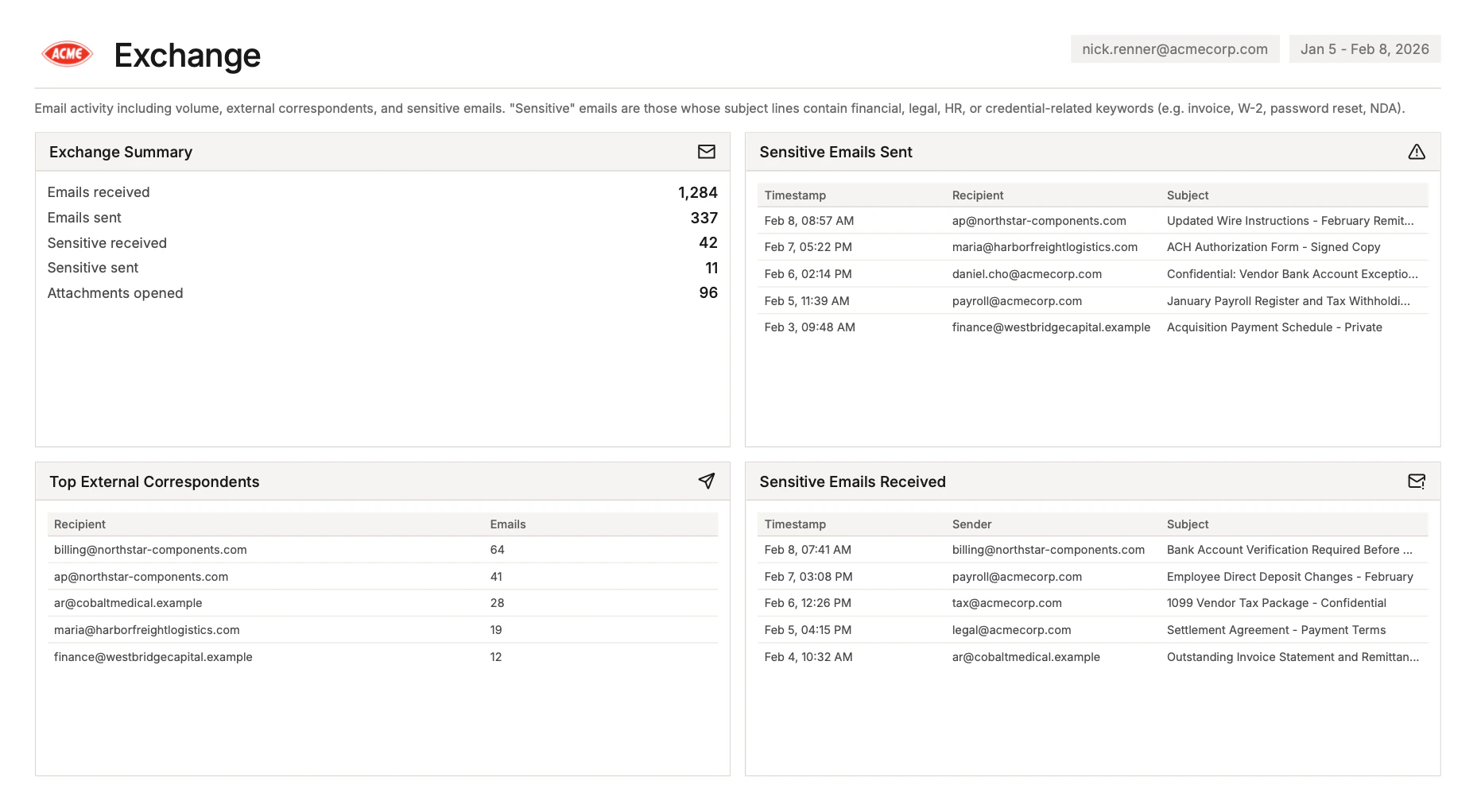
* **Exchange**: emails sent and received, external recipients, and notable subjects
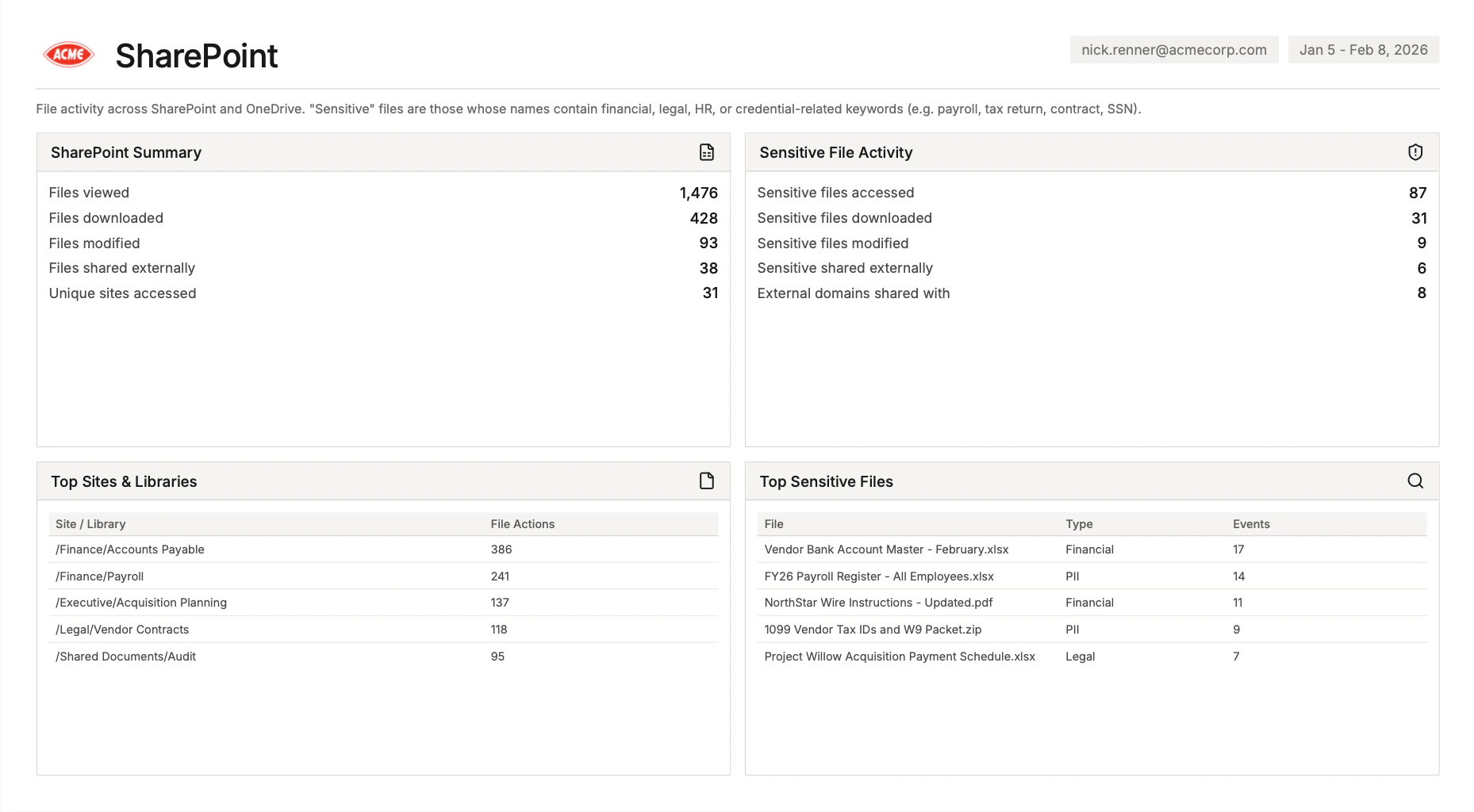
* **SharePoint**: files accessed, modified, or shared
* **Teams**: messaging, meetings, and collaboration activity
* **Devices & Apps**: registered devices and OAuth application consent or registration events during the reporting period
 ## Generating the Report
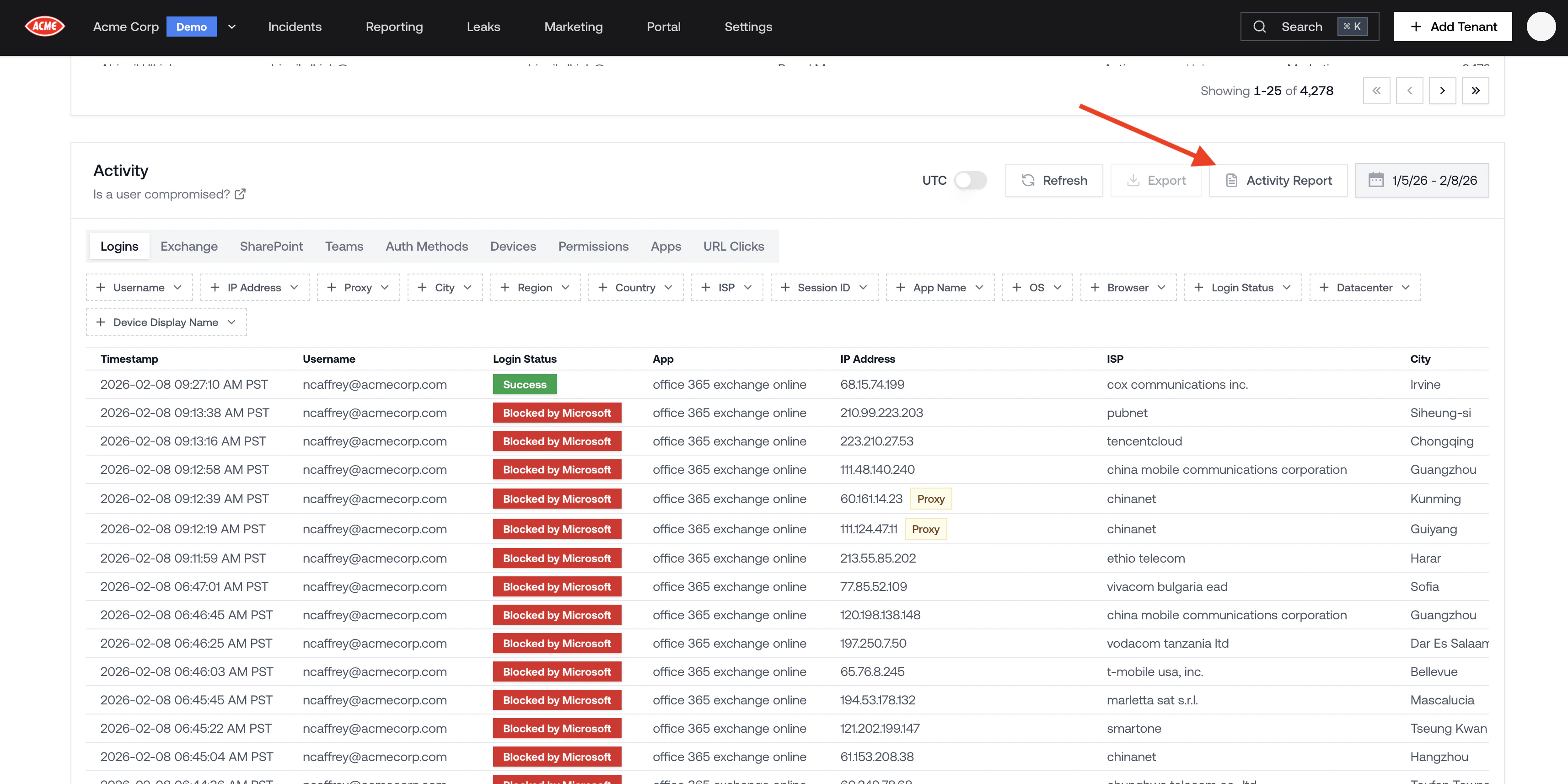
1. From the **Homepage**, click into a tenant.
2. Scroll down to the **Activity logs** section.
3. Click the **User Activity** button.
4. Select the user and date range, then download the PDF.
## Generating the Report
1. From the **Homepage**, click into a tenant.
2. Scroll down to the **Activity logs** section.
3. Click the **User Activity** button.
4. Select the user and date range, then download the PDF.
 ## Customizing Report Branding
User Activity Reports use the same white-label branding as tenant reports. To update the logo, organization name, or contact email that appear in the PDF, go to **Settings > Branding**. See [Customizing Report Branding](/reporting/tenant-report#customizing-report-branding) for details.
## Customizing Report Branding
User Activity Reports use the same white-label branding as tenant reports. To update the logo, organization name, or contact email that appear in the PDF, go to **Settings > Branding**. See [Customizing Report Branding](/reporting/tenant-report#customizing-report-branding) for details.