> ## Documentation Index
> Fetch the complete documentation index at: https://docs.petrasecurity.com/docs/llms.txt
> Use this file to discover all available pages before exploring further.
# Conditional Access Policies
> View your Conditional Access Policies across all tenants and see which policies are blocking sign-ins.
## Overview
The **Policies** page gives you a single view of all Conditional Access Policies (CAPs) across your tenants. You can see the status and configuration of each policy, check how many sign-ins it has blocked, and drill into individual sign-ins to understand exactly what triggered a block.
This is useful for:
* **Posture visibility**: Confirm that the right policies are enforced across your tenants.
* **Troubleshooting blocked sign-ins**: Find out which specific policy blocked a user and why.
* **Client reporting**: Show clients which policies are active and what they're catching.
## Viewing Your Policies
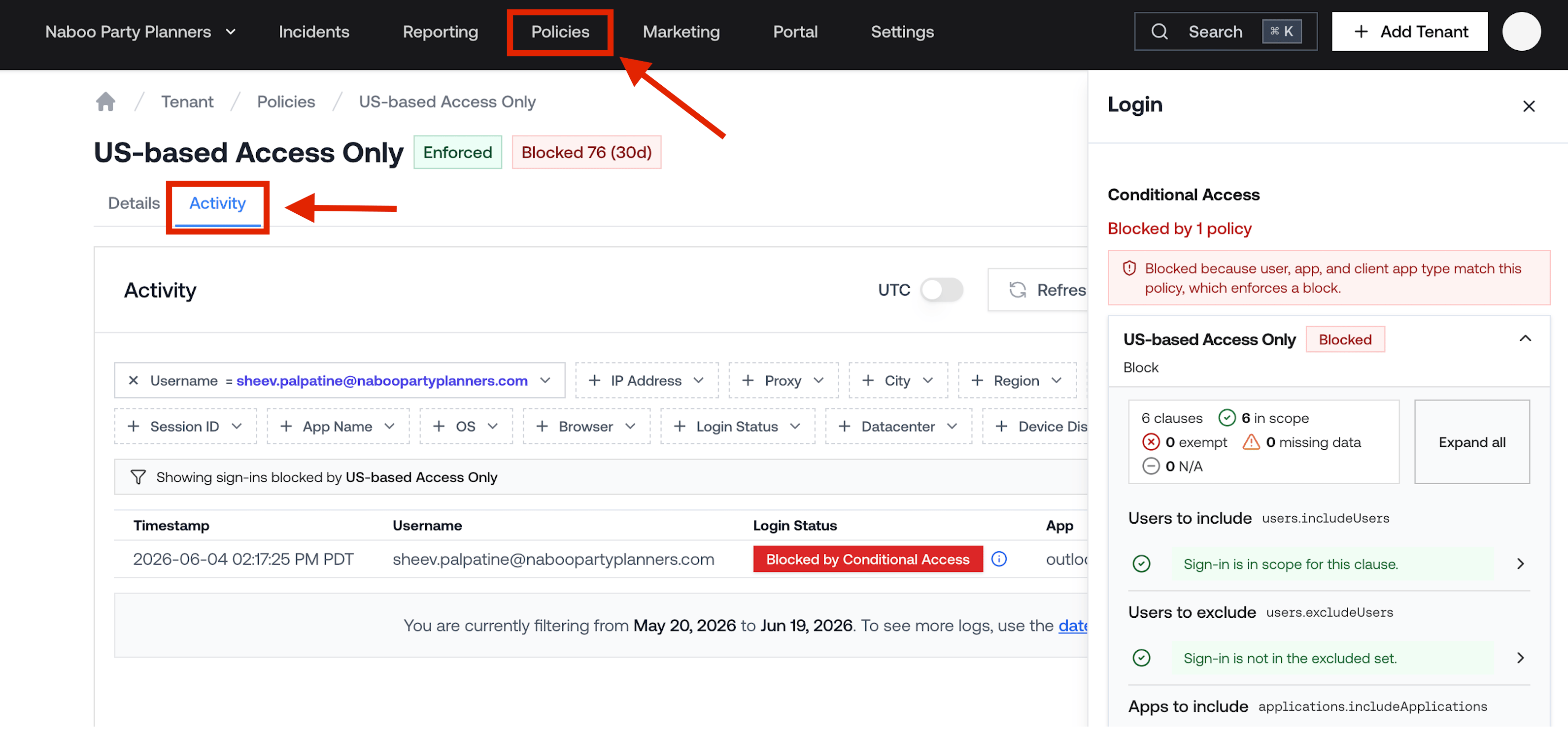
1. Click **Policies** in the left navigation bar.
2. The page lists all your tenants. Click a tenant row to expand it and see that tenant's Conditional Access Policies.
Each policy shows:
| Column | What it tells you |
| ------------ | -------------------------------------------------------------------- |
| **State** | Whether the policy is **Enforced**, **Report-only**, or **Disabled** |
| **Policy** | The policy's display name |
| **Activity** | How many sign-ins the policy blocked in the last 30 days |
 ## Viewing Policy Details
Click a policy name to open its detail page. The **Details** tab shows a plain-English summary of the policy, including:
* **Who it applies to**: which users, groups, or roles are included or excluded.
* **What apps it covers**: which applications the policy targets.
* **What happens**: whether sign-ins are blocked, require MFA, or have other grant controls applied.
## Seeing Which Policy Blocked a Sign-In
When a sign-in is blocked by a Conditional Access Policy, you can see exactly which policy caused the block and what conditions triggered it.
### From the Policies page
On the policy detail page, click the **Activity** tab to see all sign-ins that were blocked by that specific policy. This is a filtered view of the tenant's login logs showing only sign-ins affected by the selected policy.
### From the Activity viewer
When browsing a tenant's login logs, blocked sign-ins show a status indicating they were blocked by Conditional Access. Click the **Information** icon on a blocked sign-in to open a drawer that shows:
* Every Conditional Access Policy that was evaluated for that sign-in.
* The result of each policy (blocked, granted, or not applicable).
* Which specific policy triggered the block.
## Viewing Policy Details
Click a policy name to open its detail page. The **Details** tab shows a plain-English summary of the policy, including:
* **Who it applies to**: which users, groups, or roles are included or excluded.
* **What apps it covers**: which applications the policy targets.
* **What happens**: whether sign-ins are blocked, require MFA, or have other grant controls applied.
## Seeing Which Policy Blocked a Sign-In
When a sign-in is blocked by a Conditional Access Policy, you can see exactly which policy caused the block and what conditions triggered it.
### From the Policies page
On the policy detail page, click the **Activity** tab to see all sign-ins that were blocked by that specific policy. This is a filtered view of the tenant's login logs showing only sign-ins affected by the selected policy.
### From the Activity viewer
When browsing a tenant's login logs, blocked sign-ins show a status indicating they were blocked by Conditional Access. Click the **Information** icon on a blocked sign-in to open a drawer that shows:
* Every Conditional Access Policy that was evaluated for that sign-in.
* The result of each policy (blocked, granted, or not applicable).
* Which specific policy triggered the block.
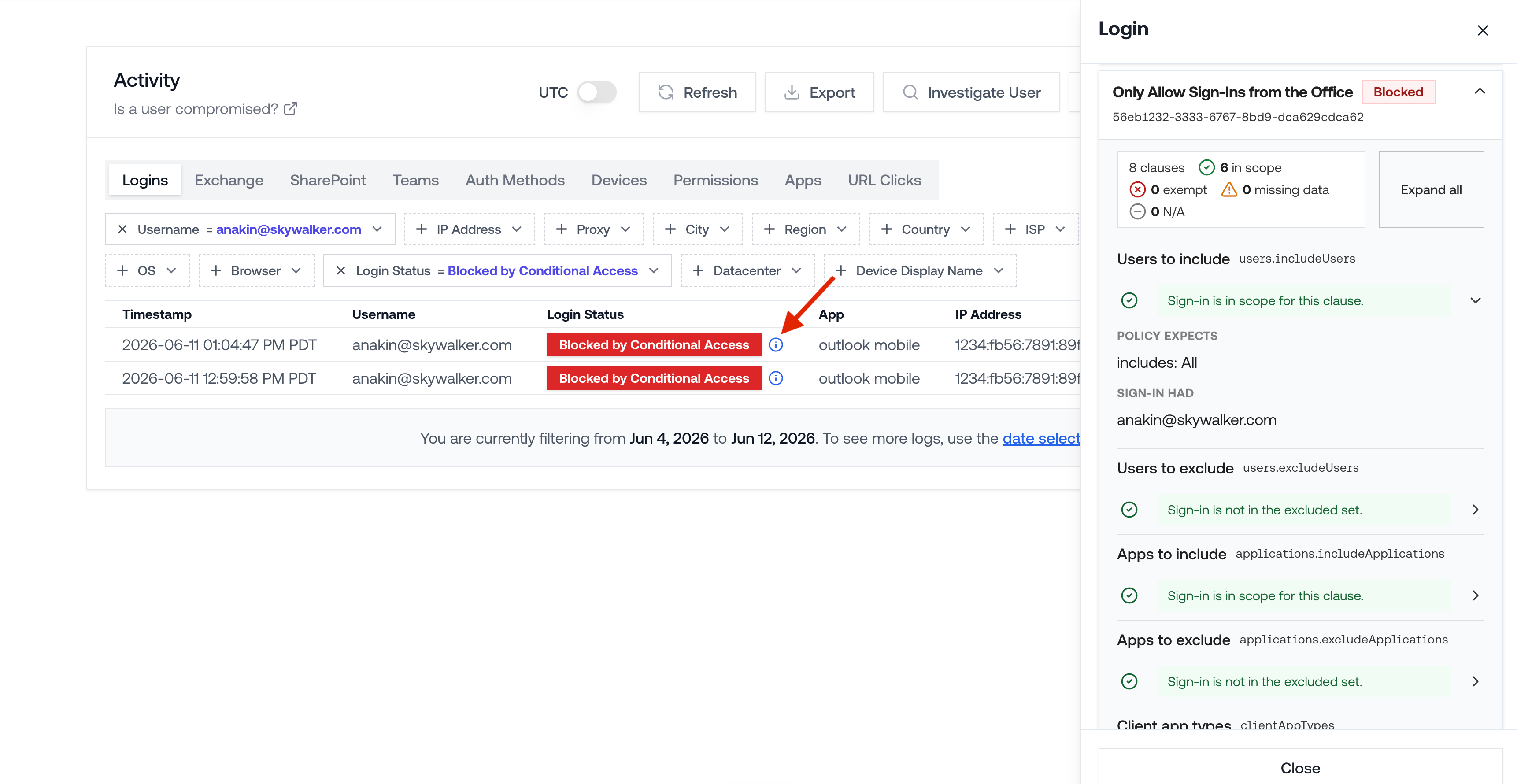 This is helpful when a user reports they cannot sign in and you need to quickly identify which policy is responsible.