> ## Documentation Index
> Fetch the complete documentation index at: https://docs.petrasecurity.com/docs/llms.txt
> Use this file to discover all available pages before exploring further.
# Who is using a proxy/VPN? Which ones?
> Learn how to identify and analyze proxy, VPN, and data center usage in your environment
## Overview
Petra Security's primary focus is to detect account compromises. There are many benign cases of VPN and proxy use, and Petra differs from other security tools by performing deep analysis to weed out benign VPN and proxy use.
However, there are many cases where VPN and proxy use can demonstrate deep analysis and launch important conversations with your stakeholders. We preserve and spotlight these benign VPN and proxy uses to help you deeply understand your environment.
**All proxy and VPN use outlined here is benign.** Malicious VPN/proxy use is a small fraction, and is classified as an incident.
## Two Investigation Methods
Petra offers two primary ways to investigate proxy and VPN use:
1. **Reporting Interface** - Quick overview of uncommon proxy activities
2. **Logs Viewer** - Detailed analysis with advanced filtering capabilities
## Using the Reporting Interface
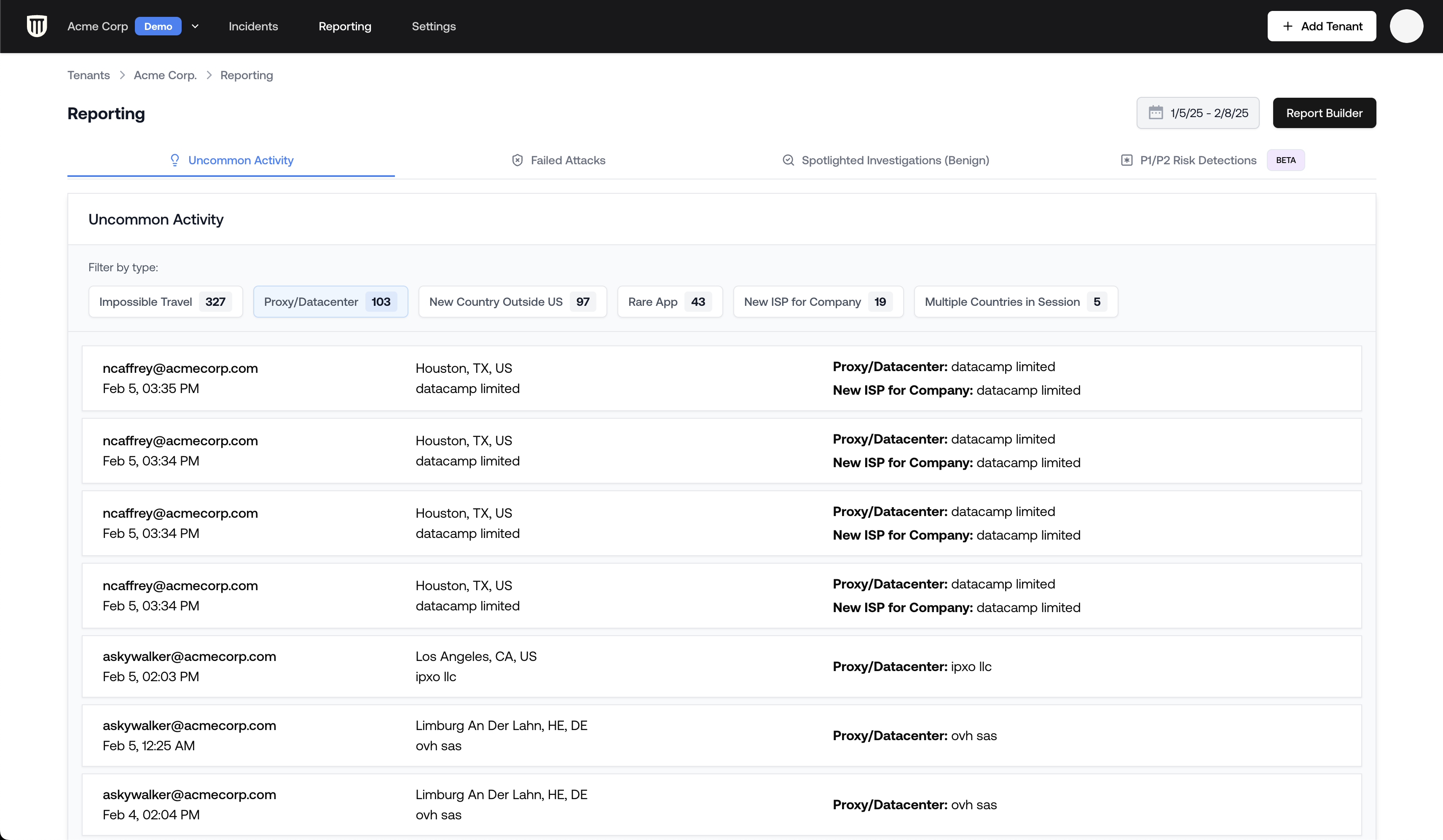
The reporting interface provides a straightforward (and stakeholder-friendly) view of uncommon proxy activities:
1. Navigate to your tenant by selecting it from the top left corner
2. Click on the **Reporting** tab in the top navigation bar
3. Select the **Uncommon Activity** tab
4. Filter by **Type: "Proxy and Data Center Use"**
This will display a list of all instances where users accessed your environment through proxies or data centers. Each entry provides:
* User information
* Time of access
* Proxy/data center details
Click on any specific entry to view more details about that particular event in context. Each is its own page, with its own fully-functional log viewer -- with the activity pre-highlighted.
 ## Detailed Analysis with Logs Viewer
For more in-depth investigation:
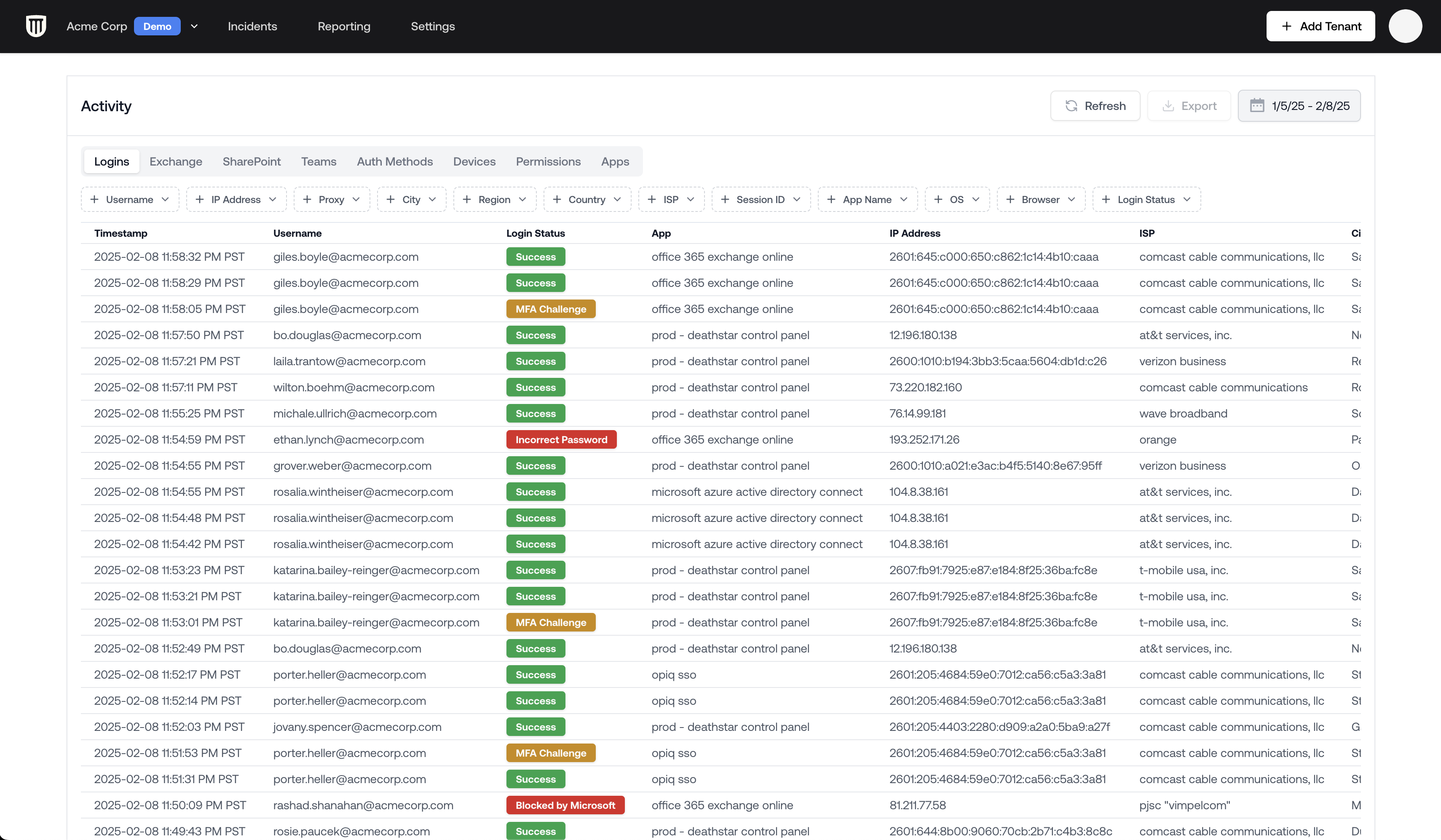
1. Navigate to your tenant's main page
2. Scroll down to the **Activity** panel
3. Apply filters:
* Set **Proxy: Yes** to show only proxy traffic
* Add **Login Status: Successful** to focus on successful logins
### Advanced Filtering Options
The Logs Viewer is always the best way to investigate. It offers powerful filtering capabilities:
#### Filter by User
1. Right-click on a username
2. Select **Include**
3. This applies a username filter to all logs
#### Filter by ISP or Proxy Type
You can exclude specific ISPs (like Cloudflare) to focus on other proxy types:
1. Right-click on the ISP field
2. Select **Exclude**
3. This removes entries from that specific provider
You can filter by many other fields, like **Country**, **Device**, and more.
## Detailed Analysis with Logs Viewer
For more in-depth investigation:
1. Navigate to your tenant's main page
2. Scroll down to the **Activity** panel
3. Apply filters:
* Set **Proxy: Yes** to show only proxy traffic
* Add **Login Status: Successful** to focus on successful logins
### Advanced Filtering Options
The Logs Viewer is always the best way to investigate. It offers powerful filtering capabilities:
#### Filter by User
1. Right-click on a username
2. Select **Include**
3. This applies a username filter to all logs
#### Filter by ISP or Proxy Type
You can exclude specific ISPs (like Cloudflare) to focus on other proxy types:
1. Right-click on the ISP field
2. Select **Exclude**
3. This removes entries from that specific provider
You can filter by many other fields, like **Country**, **Device**, and more.