> ## Documentation Index
> Fetch the complete documentation index at: https://docs.petrasecurity.com/docs/llms.txt
> Use this file to discover all available pages before exploring further.
# ConnectWise PSA Integration
> Connect Petra with ConnectWise PSA (Manage) for automated ticketing and billing sync.
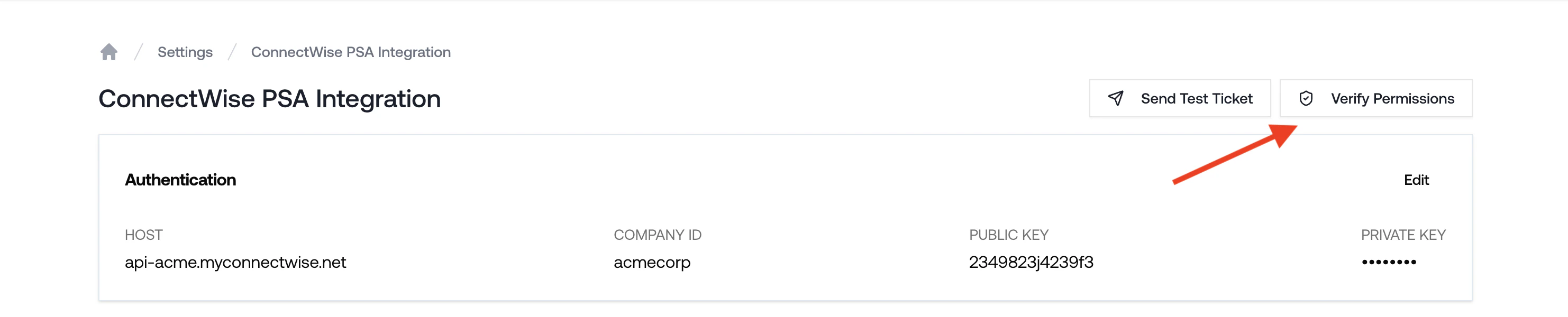
Click **Verify Permissions** on the ConnectWise integration page in Petra. It runs every permission check in one pass and tells you exactly what is missing.
 ## Ticketing
### Prerequisites
* Petra account
* ConnectWise PSA admin permissions
### 1. Create a Security Role in ConnectWise
1. In ConnectWise Manage, open the left navigation, go to **System** → **Security Roles**, and click **+** to create a new role. Give it a recognizable name (e.g., `Petra API`).
2. Set the following permissions:
* **Companies**
* Company Maintenance → Inquire Level: All
* Contacts → Inquire Level: All
* **Service Desk**
* Close service tickets → Edit: All, Inquire: All
* Service Tickets → Add: All, Edit: All, Inquire: All
* **System**
* API Reports → Inquire: All
* Table Setup (customize) → Inquire: All
3. Click the `(customize)` link next to **Table Setup**. In the Update Security window move all items to the Disallow list, then move the following back to the Allow list:
* Company / Company Status
* Project / Project Board
* Service / Priority
* Service / Service Board
* Service / Source
## Ticketing
### Prerequisites
* Petra account
* ConnectWise PSA admin permissions
### 1. Create a Security Role in ConnectWise
1. In ConnectWise Manage, open the left navigation, go to **System** → **Security Roles**, and click **+** to create a new role. Give it a recognizable name (e.g., `Petra API`).
2. Set the following permissions:
* **Companies**
* Company Maintenance → Inquire Level: All
* Contacts → Inquire Level: All
* **Service Desk**
* Close service tickets → Edit: All, Inquire: All
* Service Tickets → Add: All, Edit: All, Inquire: All
* **System**
* API Reports → Inquire: All
* Table Setup (customize) → Inquire: All
3. Click the `(customize)` link next to **Table Setup**. In the Update Security window move all items to the Disallow list, then move the following back to the Allow list:
* Company / Company Status
* Project / Project Board
* Service / Priority
* Service / Service Board
* Service / Source
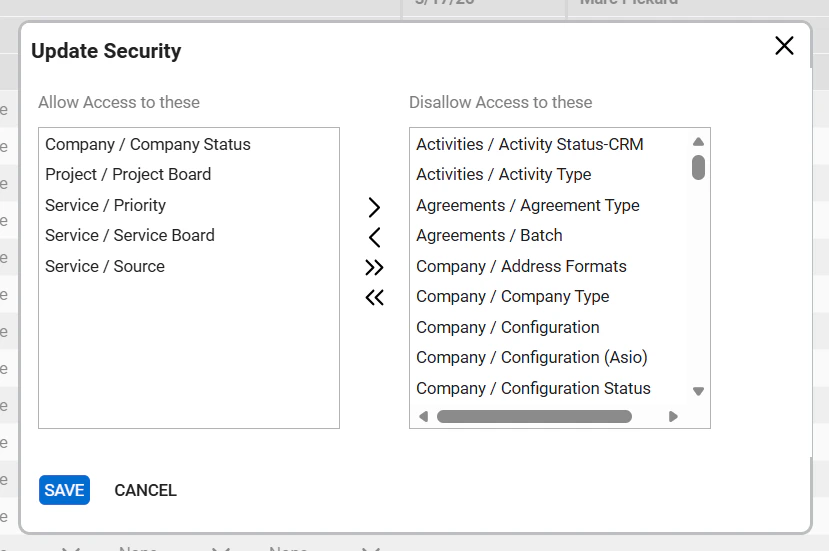 The **Allow** list is the **left** column, not the right. Make sure the items above appear under "Allow Access to these" on the left side of the dialog.
Save your changes and close the role editor.
### 2. Create an API Member
1. Navigate to **System** → **Members** → **API Members** and click **+**.
2. Fill in the profile details and assign the Security Role you created above. Save the member.
### 3. Generate API keys
1. On the API Member profile, open the **API Keys** tab and click **+**.
2. Enter a description and save to generate a **Public Key** and **Private Key**. Copy the keys; the Private Key is only shown once.
### 3.5 Verify Service Board Configuration (Required)
1. In ConnectWise Manage, navigate to **System** → **Setup Tables** → **Service Board**.
2. Open the Service Board that Petra will use for ticket creation.
3. Verify that **Default Team** is set. If it is not set, select a team from the dropdown.
4. Ensure the selected team is active.
Ticket creation will fail with the error "InvalidObject: ticket object is invalid - Cannot find default team for board specified (field: board)" if the Service Board does not have a Default Team configured. Verify this setting before linking ConnectWise in Petra.
### 4. Link ConnectWise in Petra
1. In Petra, open Settings: [https://app.petrasecurity.com/settings](https://app.petrasecurity.com/settings) and click **Link ConnectWise**.
2. In the dialog, enter:
* **Company ID** (your ConnectWise company)
* **Site URL** (e.g., `mycompany.connectwise.com`)
* **Public Key** and **Private Key** (from the API Member)
Then click **Save**.
**Note:** If ticket creation fails later, confirm the selected Service Board has a Default Team configured (see step 3.5).
After saving, ConnectWise may take up to 1–2 minutes to confirm the connection.
### 5. Configure Integration Settings
Once connected, you can configure how Petra creates tickets in ConnectWise:
1. In Petra Settings, navigate to your ConnectWise integration configuration
2. Select the target **Service Board** and default **Company** for ticket creation
3. Optionally set a default **Priority** that will be applied to all tickets created from incidents
Priorities are automatically synced from ConnectWise when you link the integration. If you don't see the priority you need, you can refresh the priority list from the integration settings.
If you receive a permission error when syncing priorities, ensure the API Member's Security Role includes **Service / Priority** permissions in the Table Setup section (see [step 1](#1-create-a-security-role-in-connectwise)). The error message will indicate: "ConnectWise API user does not have permission to access Service > Priority."
These settings can be adjusted anytime from Petra Settings.
### Troubleshooting
Click **Verify Permissions** on the ConnectWise integration page in Petra. It runs every permission check in one pass and tells you exactly what is missing.
* Authentication failed: Verify Company ID, Site URL, Public and Private keys. Regenerate keys if needed.
* Permission errors: Ensure the API Member uses the Security Role configured above and is active.
* Slow connection/timeout: Wait 1–2 minutes and retry; if the issue persists, contact Petra Support.
Need help? Email us at [support@petrasecurity.com](mailto:support@petrasecurity.com).
***
## Delete Integration
Deleting a PSA integration is permanent. All associated data, including tickets, company mappings, service board settings, and priorities, will be removed and cannot be recovered.
Only **Admins** can delete a PSA integration. Full Members, Sales, and other roles do not have permission to perform this action.
To delete your ConnectWise PSA integration:
1. Go to [Settings](https://app.petrasecurity.com/settings) and open your ConnectWise integration page.
2. Click **Delete Integration**.
3. Confirm the deletion in the dialog.
Once confirmed, Petra removes all ConnectWise data from your organization, including synced companies, service boards, priorities, ticket records, and tenant-to-company mappings. Billing sync stops immediately.
If you need to reconnect ConnectWise later, follow the setup steps in [Ticketing](#ticketing) above to link a new integration from scratch.
***
## Billing
Petra can sync billing data — such as product quantities and agreement line items — to ConnectWise. This section covers the additional setup required beyond the ticketing integration above.
### Additional Permissions
Add the following to the Security Role you created in [step 1](#1-create-a-security-role-in-connectwise):
* **Finance**
* Agreements → Edit: All, Inquire: All
* **Procurement**
* Product Catalog → Inquire Level: All
You can scope this down later to just the specific Agreement you map in Petra if you want to tighten permissions.
### Configure Billing in Petra
Once the additional permissions are in place, go to [Settings](https://app.petrasecurity.com/settings) in Petra and configure billing sync for your ConnectWise tenants. Map each tenant to a ConnectWise Agreement and product.
### Troubleshooting
Click **Verify Permissions** on the ConnectWise integration page in Petra. It checks both ticketing and billing permissions and tells you exactly what is missing.
**Retrying a single tenant**
If billing sync fails for one tenant, you do not need to re-run the full sync. Click the **Retry** button next to the failed tenant in the billing sync results table. Petra will re-compute that tenant's live billable count and sync only that tenant to ConnectWise.
**Multiple agreements contain the mapped product for this company**
> Error: "Multiple agreements contain the mapped product for this company. Only one agreement per company should have the product. Resolve in ConnectWise."
This means the product mapped in Petra exists on more than one agreement for the same company. ConnectWise requires a one-to-one relationship: each company should have only one agreement containing the mapped product.
To resolve this, remove or replace the duplicate product on the extra agreement. One approach is to clone the product (e.g., rename the clone to "M365 AI Powered MDR – Cancelled") and swap it onto the agreement you don't want Petra to sync with, so only one agreement retains the original product.
Need help? Email us at [support@petrasecurity.com](mailto:support@petrasecurity.com).
The **Allow** list is the **left** column, not the right. Make sure the items above appear under "Allow Access to these" on the left side of the dialog.
Save your changes and close the role editor.
### 2. Create an API Member
1. Navigate to **System** → **Members** → **API Members** and click **+**.
2. Fill in the profile details and assign the Security Role you created above. Save the member.
### 3. Generate API keys
1. On the API Member profile, open the **API Keys** tab and click **+**.
2. Enter a description and save to generate a **Public Key** and **Private Key**. Copy the keys; the Private Key is only shown once.
### 3.5 Verify Service Board Configuration (Required)
1. In ConnectWise Manage, navigate to **System** → **Setup Tables** → **Service Board**.
2. Open the Service Board that Petra will use for ticket creation.
3. Verify that **Default Team** is set. If it is not set, select a team from the dropdown.
4. Ensure the selected team is active.
Ticket creation will fail with the error "InvalidObject: ticket object is invalid - Cannot find default team for board specified (field: board)" if the Service Board does not have a Default Team configured. Verify this setting before linking ConnectWise in Petra.
### 4. Link ConnectWise in Petra
1. In Petra, open Settings: [https://app.petrasecurity.com/settings](https://app.petrasecurity.com/settings) and click **Link ConnectWise**.
2. In the dialog, enter:
* **Company ID** (your ConnectWise company)
* **Site URL** (e.g., `mycompany.connectwise.com`)
* **Public Key** and **Private Key** (from the API Member)
Then click **Save**.
**Note:** If ticket creation fails later, confirm the selected Service Board has a Default Team configured (see step 3.5).
After saving, ConnectWise may take up to 1–2 minutes to confirm the connection.
### 5. Configure Integration Settings
Once connected, you can configure how Petra creates tickets in ConnectWise:
1. In Petra Settings, navigate to your ConnectWise integration configuration
2. Select the target **Service Board** and default **Company** for ticket creation
3. Optionally set a default **Priority** that will be applied to all tickets created from incidents
Priorities are automatically synced from ConnectWise when you link the integration. If you don't see the priority you need, you can refresh the priority list from the integration settings.
If you receive a permission error when syncing priorities, ensure the API Member's Security Role includes **Service / Priority** permissions in the Table Setup section (see [step 1](#1-create-a-security-role-in-connectwise)). The error message will indicate: "ConnectWise API user does not have permission to access Service > Priority."
These settings can be adjusted anytime from Petra Settings.
### Troubleshooting
Click **Verify Permissions** on the ConnectWise integration page in Petra. It runs every permission check in one pass and tells you exactly what is missing.
* Authentication failed: Verify Company ID, Site URL, Public and Private keys. Regenerate keys if needed.
* Permission errors: Ensure the API Member uses the Security Role configured above and is active.
* Slow connection/timeout: Wait 1–2 minutes and retry; if the issue persists, contact Petra Support.
Need help? Email us at [support@petrasecurity.com](mailto:support@petrasecurity.com).
***
## Delete Integration
Deleting a PSA integration is permanent. All associated data, including tickets, company mappings, service board settings, and priorities, will be removed and cannot be recovered.
Only **Admins** can delete a PSA integration. Full Members, Sales, and other roles do not have permission to perform this action.
To delete your ConnectWise PSA integration:
1. Go to [Settings](https://app.petrasecurity.com/settings) and open your ConnectWise integration page.
2. Click **Delete Integration**.
3. Confirm the deletion in the dialog.
Once confirmed, Petra removes all ConnectWise data from your organization, including synced companies, service boards, priorities, ticket records, and tenant-to-company mappings. Billing sync stops immediately.
If you need to reconnect ConnectWise later, follow the setup steps in [Ticketing](#ticketing) above to link a new integration from scratch.
***
## Billing
Petra can sync billing data — such as product quantities and agreement line items — to ConnectWise. This section covers the additional setup required beyond the ticketing integration above.
### Additional Permissions
Add the following to the Security Role you created in [step 1](#1-create-a-security-role-in-connectwise):
* **Finance**
* Agreements → Edit: All, Inquire: All
* **Procurement**
* Product Catalog → Inquire Level: All
You can scope this down later to just the specific Agreement you map in Petra if you want to tighten permissions.
### Configure Billing in Petra
Once the additional permissions are in place, go to [Settings](https://app.petrasecurity.com/settings) in Petra and configure billing sync for your ConnectWise tenants. Map each tenant to a ConnectWise Agreement and product.
### Troubleshooting
Click **Verify Permissions** on the ConnectWise integration page in Petra. It checks both ticketing and billing permissions and tells you exactly what is missing.
**Retrying a single tenant**
If billing sync fails for one tenant, you do not need to re-run the full sync. Click the **Retry** button next to the failed tenant in the billing sync results table. Petra will re-compute that tenant's live billable count and sync only that tenant to ConnectWise.
**Multiple agreements contain the mapped product for this company**
> Error: "Multiple agreements contain the mapped product for this company. Only one agreement per company should have the product. Resolve in ConnectWise."
This means the product mapped in Petra exists on more than one agreement for the same company. ConnectWise requires a one-to-one relationship: each company should have only one agreement containing the mapped product.
To resolve this, remove or replace the duplicate product on the extra agreement. One approach is to clone the product (e.g., rename the clone to "M365 AI Powered MDR – Cancelled") and swap it onto the agreement you don't want Petra to sync with, so only one agreement retains the original product.
Need help? Email us at [support@petrasecurity.com](mailto:support@petrasecurity.com).