> ## Documentation Index
> Fetch the complete documentation index at: https://docs.petrasecurity.com/docs/llms.txt
> Use this file to discover all available pages before exploring further.
# Anonymize Incidents
> Show any quickly caught incident as a victory lap, and any Scan finding as a cautionary tale, without exposing your client's data.
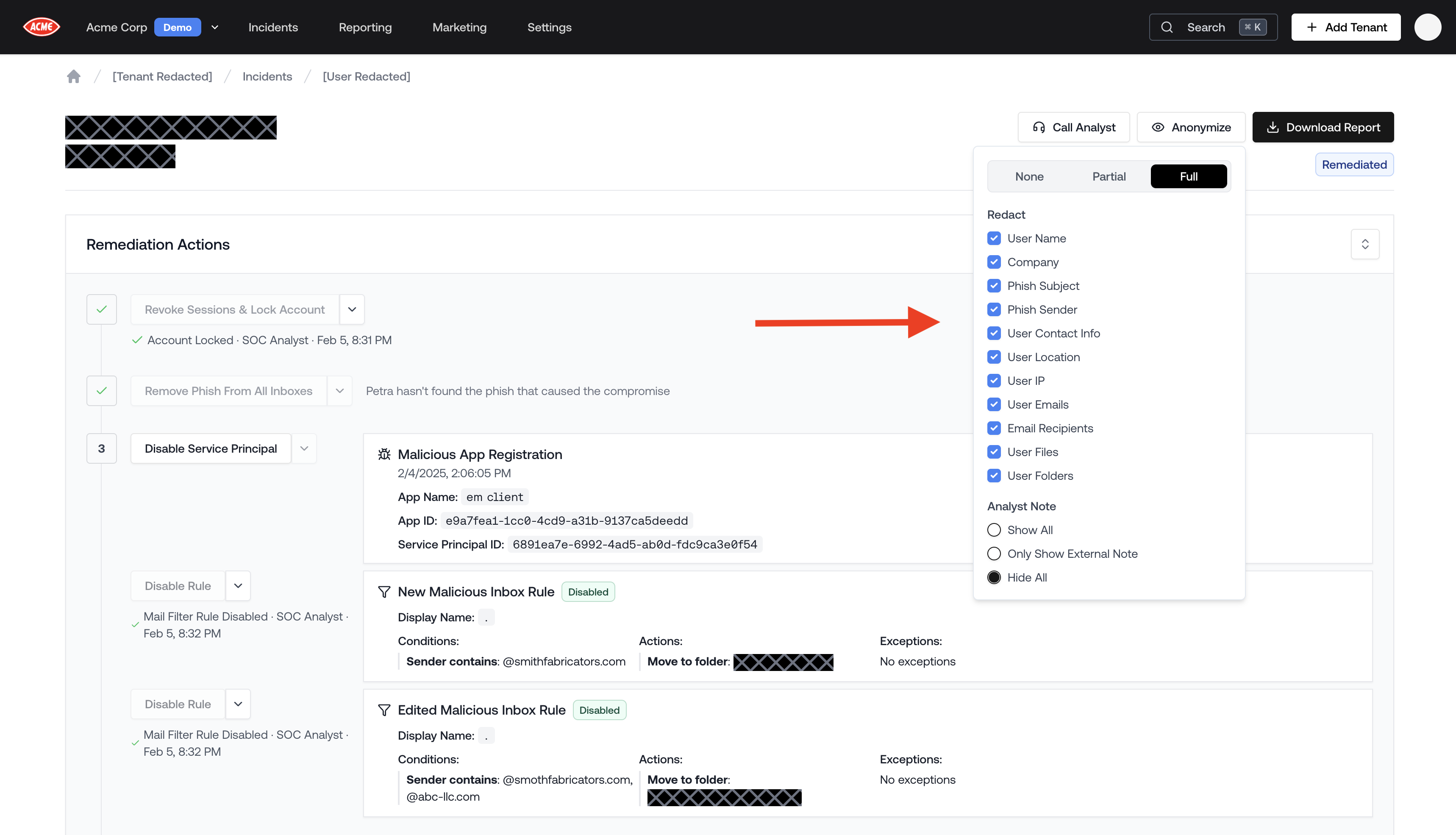
The **Anonymize** feature lets you redact any sensitive details from an incident page before sharing it with a prospect or client. Use it to tell a compelling story about an attack without exposing the name, company, emails, or files of the actual victim.
 ## Why This Matters for Sales
Real incidents are your most powerful sales tool. A prospect who sees an actual account compromise — complete with a timeline of the attacker's activity, what they accessed, and how it was caught — is far more convinced than one who reads a spec sheet.
The Anonymize feature makes it safe to use real incidents in any sales context:
* **Victory lap**: Show a prospect a live-monitored incident that Petra caught and stopped fast. The story sells itself: attacker gets in, Petra flags it within minutes, account is locked, threat remediated.
* **Cautionary tale**: Onboard a prospect's tenant and let Petra Scan surface what attackers were already doing in their environment. Use Anonymize to walk another prospect through a similar finding without revealing who the victim was.
## How to Anonymize an Incident
1. Navigate to any incident in the Petra dashboard.
2. Click the **Anonymize** button in the top right of the incident page.
3. A menu opens with redaction options. Choose a preset or configure fields manually.
4. The incident view updates instantly — the URL encodes your settings, so you can copy the link and share it directly with a prospect. Anyone opening the link sees the same redacted view.
Because anonymization is URL-based, you can prepare a link in advance and share it in an email, a slide deck, or a screen share without any risk of accidentally revealing the wrong information mid-demo.
## Redaction Presets
| Preset | What It Does |
| ----------- | ------------------------------------------------------------------------------------------------------------------------------- |
| **None** | No redaction. All information is visible. |
| **Partial** | Hides the victim's name, company, contact info, location, IP, emails, files, and folders. Shows only the external analyst note. |
| **Full** | Hides everything in Partial, plus the phish subject, phish sender, and session IDs. Hides all analyst notes. |
For most sales use cases, **Partial** is the right choice — it protects the victim's identity while keeping the attack narrative intact.
## Individual Redaction Options
If the presets don't fit your needs, you can toggle any combination of the following fields:
| Option | What Gets Hidden |
| --------------------- | ------------------------------------------------- |
| **User Name** | Victim's display name, email, and UPN |
| **Company** | Tenant name (replaced with "\[Tenant Redacted]") |
| **Phish Subject** | Subject line of the phishing email |
| **Phish Sender** | Sender name, address, and recipients of the phish |
| **User Contact Info** | Emails, usernames, and UPNs throughout the logs |
| **User Location** | City, region, and country from login logs |
| **User IP** | IP addresses in all logs |
| **User Emails** | Email subjects and accessed email content |
| **Email Recipients** | To/Cc recipient addresses |
| **User Files** | File names and paths in SharePoint activity |
| **User Folders** | Folder paths in Exchange and mailbox logs |
| **User Session ID** | Session IDs throughout all log tables |
You can also control the **Analyst Note** separately — show all notes, show only the external-facing note, or hide notes entirely.
## Redacted PDF Report
In addition to the in-app anonymized view, you can download a **Redacted PDF Report** — a fully redacted version of the incident's Threat Remediation Report, suitable for sending to a prospect after a meeting. For download steps and a full breakdown of what gets redacted, see [Redacted Incident Reports](/reporting/incident-report#redacted-incident-reports).
The Redacted PDF is great as a follow-up artifact after a prospect call. Send it so the prospect has something tangible to share internally — without any of their peer's data included.
## Tips for Using Anonymized Incidents in Sales
* **Pick incidents with a strong story arc**: The best ones have a clear phish-to-compromise timeline, meaningful blast radius (emails read, files accessed), and a fast Petra response. These are the ones that make a prospect say "what would have happened if no one caught this?"
* **Use the Incidents List to find the right one**: The **Analyst Summary** in the incidents list helps you quickly scan for the most compelling and diverse past compromises when picking one to share with a prospect. See the [Incidents List Analyst Summary](/changelog#analyst-summary-in-the-incidents-list).
* **Pair with the Example Scan Report**: If you don't yet have results for this prospect's tenant, use the anonymized incident view alongside the [Example Scan Report](/marketing-hub#reports) from the Marketing Hub to show both what real monitoring catches and what a Scan finding looks like.
## Why This Matters for Sales
Real incidents are your most powerful sales tool. A prospect who sees an actual account compromise — complete with a timeline of the attacker's activity, what they accessed, and how it was caught — is far more convinced than one who reads a spec sheet.
The Anonymize feature makes it safe to use real incidents in any sales context:
* **Victory lap**: Show a prospect a live-monitored incident that Petra caught and stopped fast. The story sells itself: attacker gets in, Petra flags it within minutes, account is locked, threat remediated.
* **Cautionary tale**: Onboard a prospect's tenant and let Petra Scan surface what attackers were already doing in their environment. Use Anonymize to walk another prospect through a similar finding without revealing who the victim was.
## How to Anonymize an Incident
1. Navigate to any incident in the Petra dashboard.
2. Click the **Anonymize** button in the top right of the incident page.
3. A menu opens with redaction options. Choose a preset or configure fields manually.
4. The incident view updates instantly — the URL encodes your settings, so you can copy the link and share it directly with a prospect. Anyone opening the link sees the same redacted view.
Because anonymization is URL-based, you can prepare a link in advance and share it in an email, a slide deck, or a screen share without any risk of accidentally revealing the wrong information mid-demo.
## Redaction Presets
| Preset | What It Does |
| ----------- | ------------------------------------------------------------------------------------------------------------------------------- |
| **None** | No redaction. All information is visible. |
| **Partial** | Hides the victim's name, company, contact info, location, IP, emails, files, and folders. Shows only the external analyst note. |
| **Full** | Hides everything in Partial, plus the phish subject, phish sender, and session IDs. Hides all analyst notes. |
For most sales use cases, **Partial** is the right choice — it protects the victim's identity while keeping the attack narrative intact.
## Individual Redaction Options
If the presets don't fit your needs, you can toggle any combination of the following fields:
| Option | What Gets Hidden |
| --------------------- | ------------------------------------------------- |
| **User Name** | Victim's display name, email, and UPN |
| **Company** | Tenant name (replaced with "\[Tenant Redacted]") |
| **Phish Subject** | Subject line of the phishing email |
| **Phish Sender** | Sender name, address, and recipients of the phish |
| **User Contact Info** | Emails, usernames, and UPNs throughout the logs |
| **User Location** | City, region, and country from login logs |
| **User IP** | IP addresses in all logs |
| **User Emails** | Email subjects and accessed email content |
| **Email Recipients** | To/Cc recipient addresses |
| **User Files** | File names and paths in SharePoint activity |
| **User Folders** | Folder paths in Exchange and mailbox logs |
| **User Session ID** | Session IDs throughout all log tables |
You can also control the **Analyst Note** separately — show all notes, show only the external-facing note, or hide notes entirely.
## Redacted PDF Report
In addition to the in-app anonymized view, you can download a **Redacted PDF Report** — a fully redacted version of the incident's Threat Remediation Report, suitable for sending to a prospect after a meeting. For download steps and a full breakdown of what gets redacted, see [Redacted Incident Reports](/reporting/incident-report#redacted-incident-reports).
The Redacted PDF is great as a follow-up artifact after a prospect call. Send it so the prospect has something tangible to share internally — without any of their peer's data included.
## Tips for Using Anonymized Incidents in Sales
* **Pick incidents with a strong story arc**: The best ones have a clear phish-to-compromise timeline, meaningful blast radius (emails read, files accessed), and a fast Petra response. These are the ones that make a prospect say "what would have happened if no one caught this?"
* **Use the Incidents List to find the right one**: The **Analyst Summary** in the incidents list helps you quickly scan for the most compelling and diverse past compromises when picking one to share with a prospect. See the [Incidents List Analyst Summary](/changelog#analyst-summary-in-the-incidents-list).
* **Pair with the Example Scan Report**: If you don't yet have results for this prospect's tenant, use the anonymized incident view alongside the [Example Scan Report](/marketing-hub#reports) from the Marketing Hub to show both what real monitoring catches and what a Scan finding looks like.